When you want the same frame on every birthday photo, that work usually happens after the shoot. You open an editing app, pick a photo, fit the frame, and export — and event photos come in dozens, so framing becomes a chore multiplied by the number of photos.
Encadra's custom frames remove that order of work. Set a transparent PNG you prepared before you shoot, and the moment you press the shutter, the photo is saved with the frame already in it. Custom frames arrived in Encadra 1.4.0. This article covers what they do, how they differ from the watermark logo, and where they do not fit.
Framing later leaves work for every photo
With the after-the-fact method, picking a photo, fitting the frame, and exporting repeats for every single photo. The frame design is decided from the start, yet the work sits behind the shoot.
Even photos you meant to hand over on the spot are not finished until the framing is done. If the frame is known before you shoot, that setting belongs inside the shoot itself.
All you prepare is one transparent PNG
What you register as a custom frame is a transparent PNG: a frame design that covers the whole photo, with the centre left transparent. The frame image itself is made outside Encadra — drawn with AI, or built with a dedicated maker tool. The steps are collected in How to make a custom frame .
The flow is three steps: prepare, set, shoot. Drawn as a diagram, it looks like this.
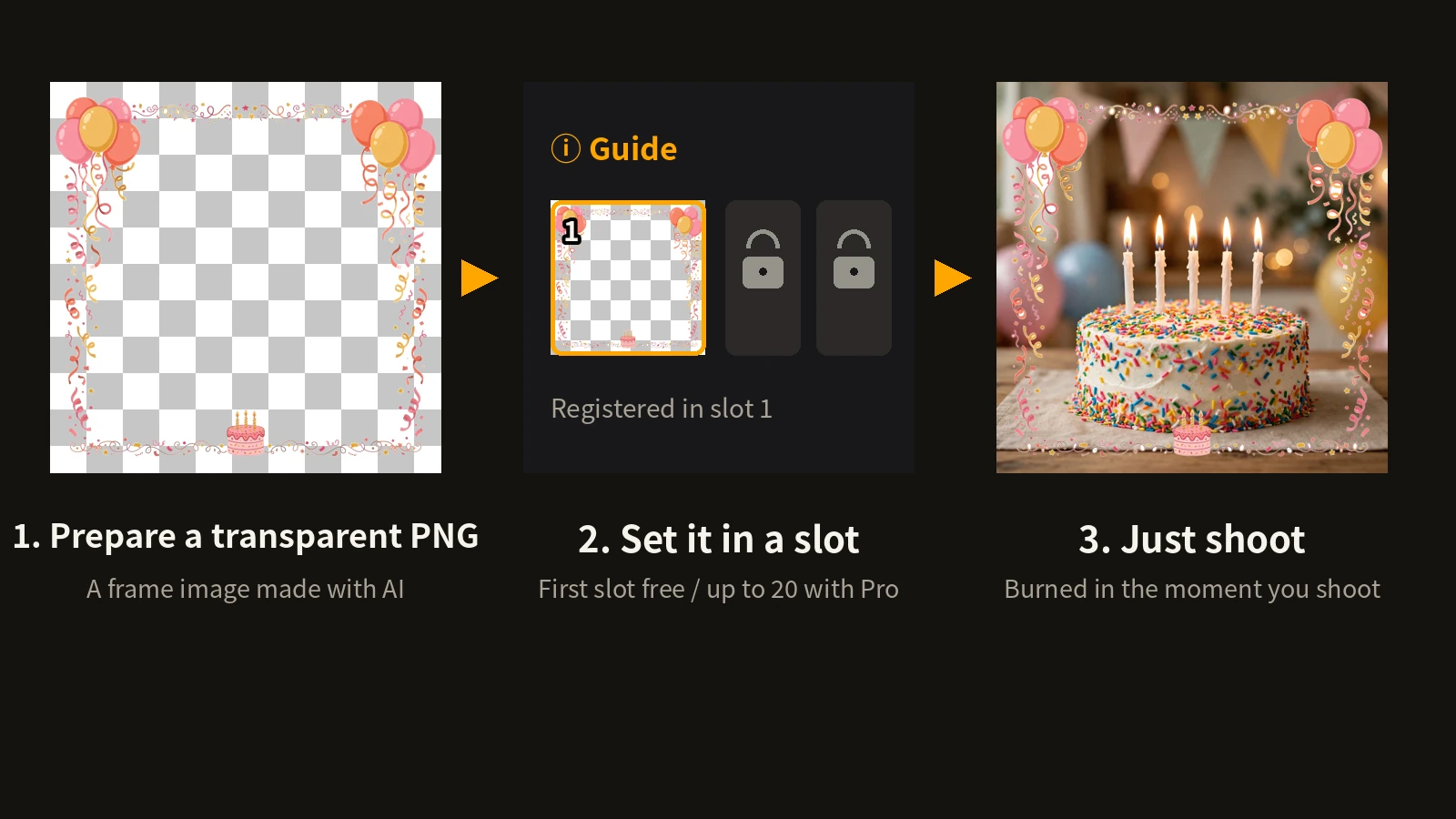
The diagram above shows the custom frame flow. Inside the slot in step two, you can see the frame design and a checkerboard pattern that stands for transparency. Only the frame is registered in a slot — a photo of a subject never goes into a slot. The frame meets the subject at the moment of shooting.
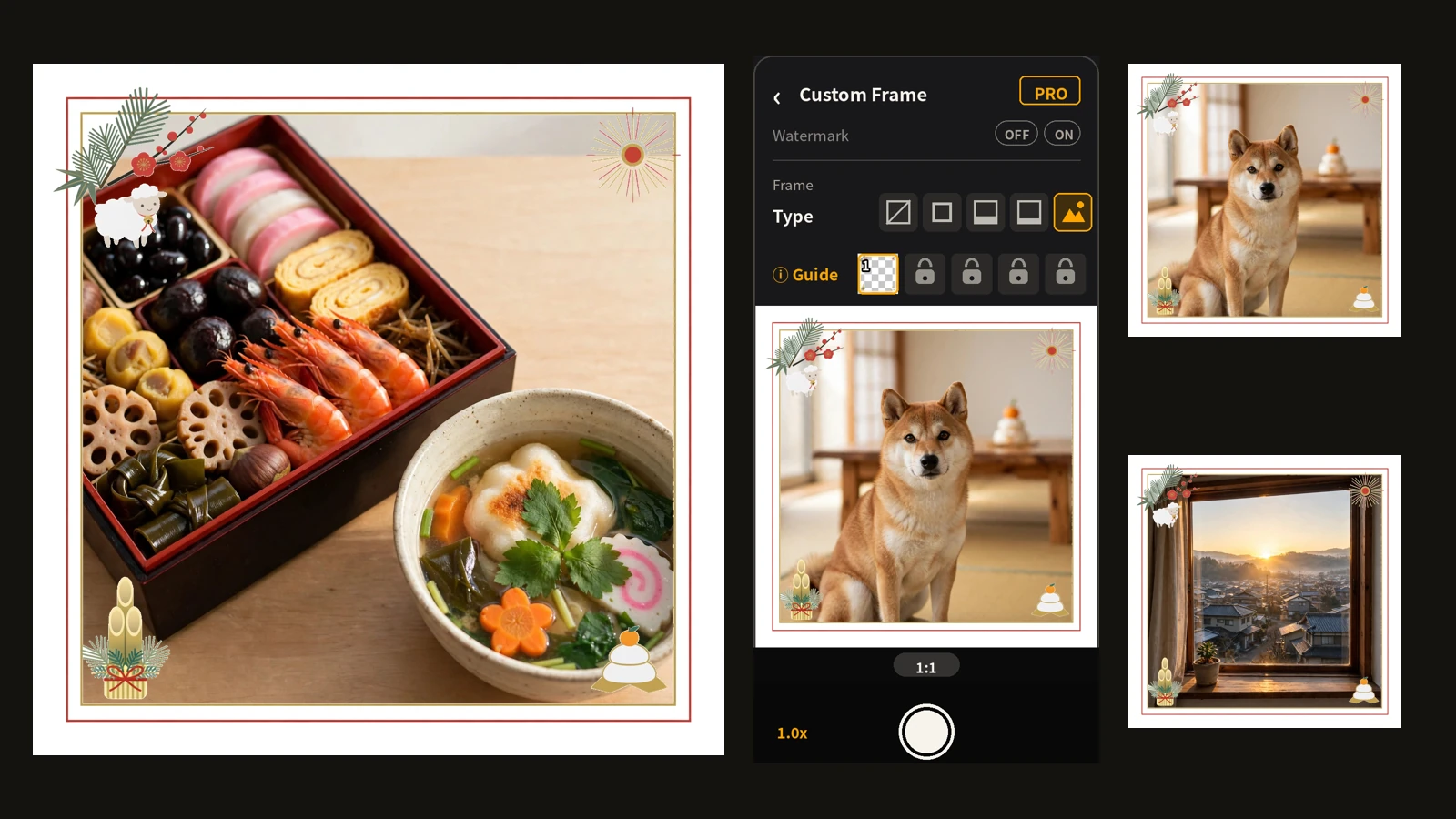
The birthday frame used in this article and its video is a transparent PNG prepared the same way: balloons and ribbons around the edges, with the centre left transparent.
Slots start at one
Frames are registered in slots, found in the frame settings on the shooting screen. The slot layout, and how a registered frame appears, looks like this.
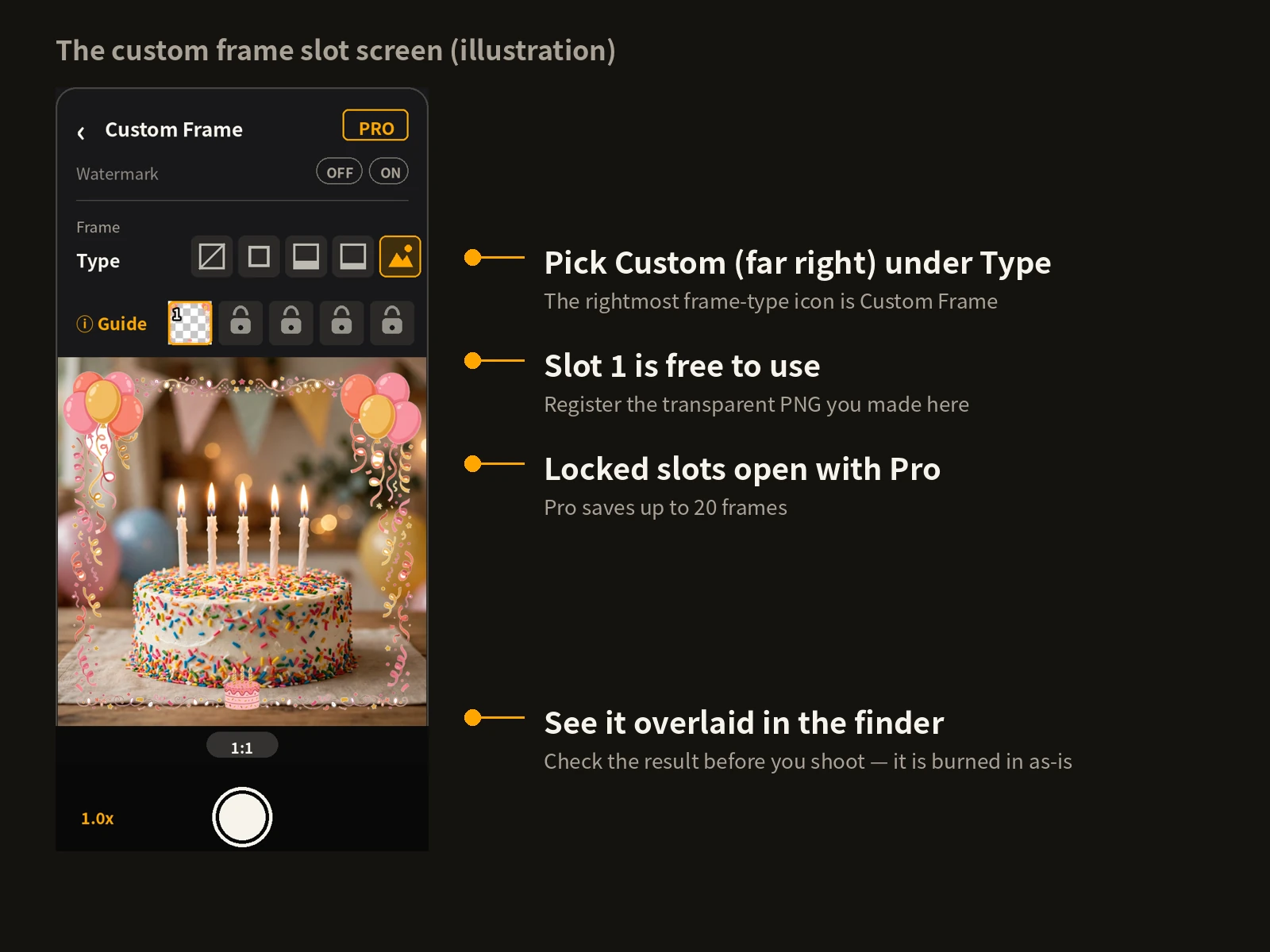
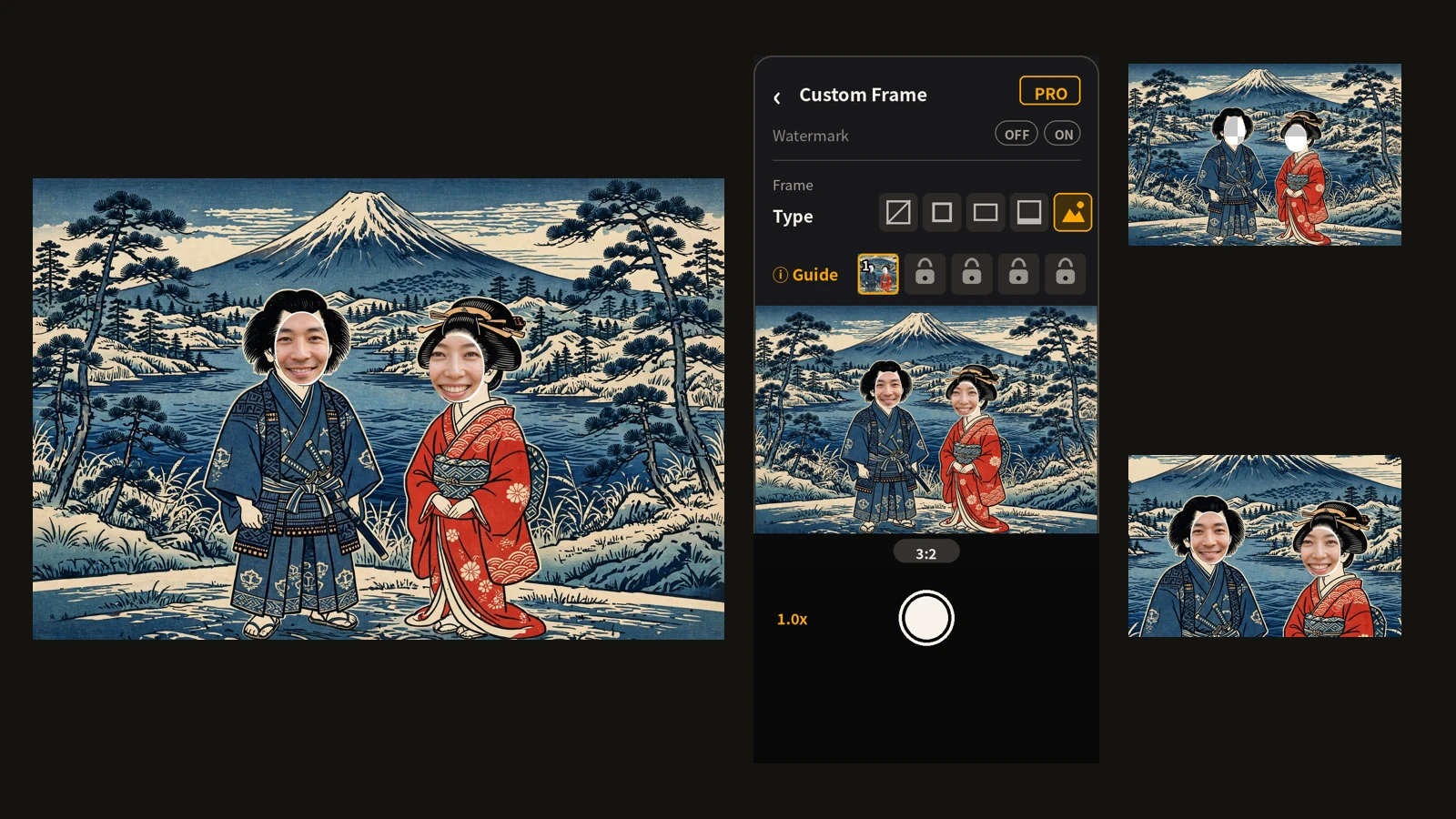
The image above is an illustration of the slot screen. You pick Custom among the frame types, and register a transparent PNG in a slot. The registered image is copied into Encadra, so the frame stays even if you delete the original PNG from your device. A registered slot can also be replaced or deleted.
One slot is free. Pro saves up to 20 slots, so frames for different occasions can be kept side by side.
A registered frame also appears on the shooting screen as-is, so you can check the result before you shoot.
Every photo comes out already framed
With a custom frame set, the frame is burned into each photo as it is saved. Every photo from the same day keeps the same frame, and framing photos one by one afterwards never happens, no matter how many there are.
Photos shot with the birthday frame look like this.
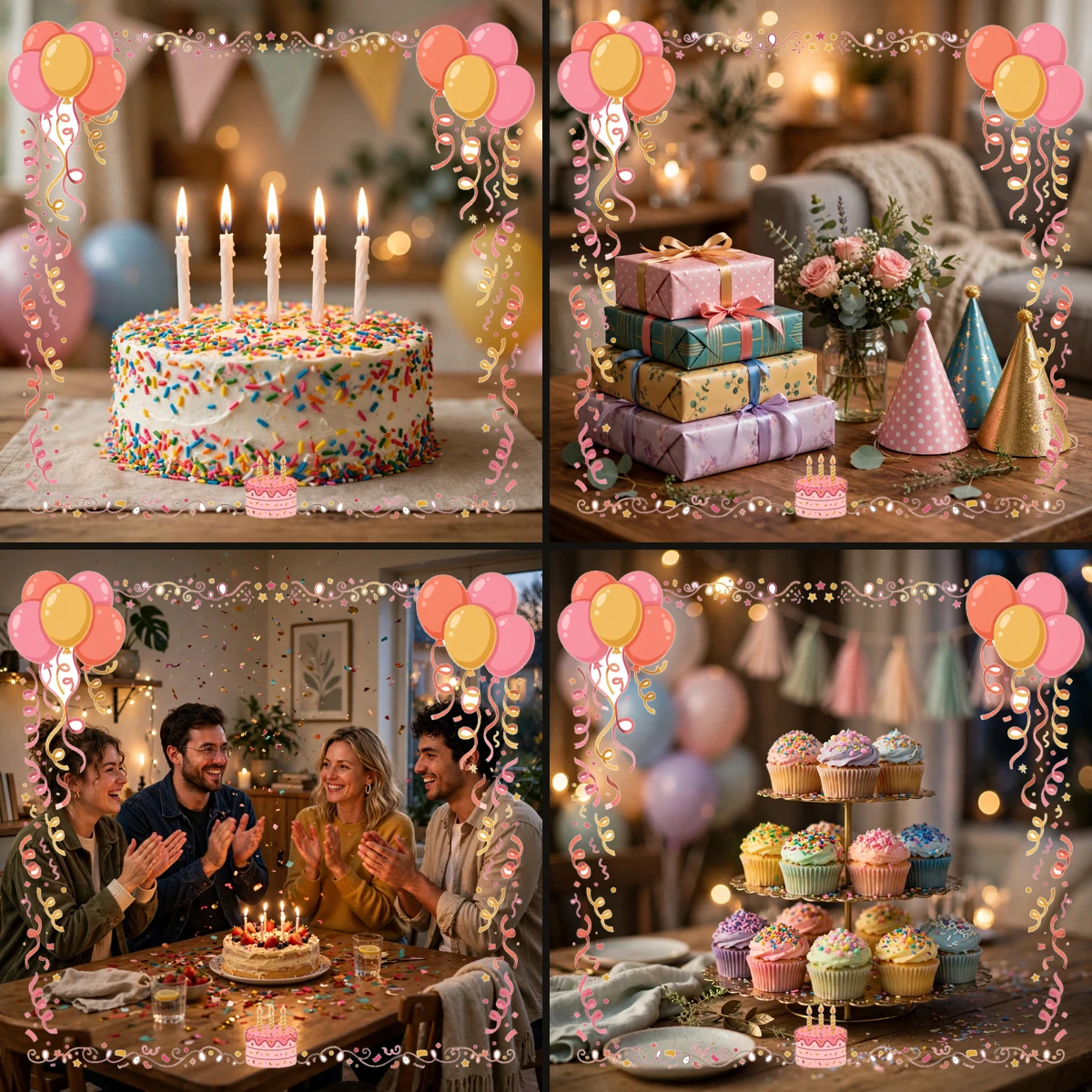
Note: This image simply places separately shot photos side by side. It is not a Sequence photo, which combines multiple shots into one image — custom frames are not available in Sequence.
The image above shows examples shot with the same frame. The subject changes, but the frame's position and size do not. A custom frame is fixed over the whole photo, so there is nothing to re-fit per photo — and, by the same token, nothing to adjust per photo.
The difference from the watermark logo: whole photo, or one spot
Encadra also has a watermark feature that overlays a logo. Both use a transparent PNG set before shooting, but their roles differ. The differences, as a table, look like this.
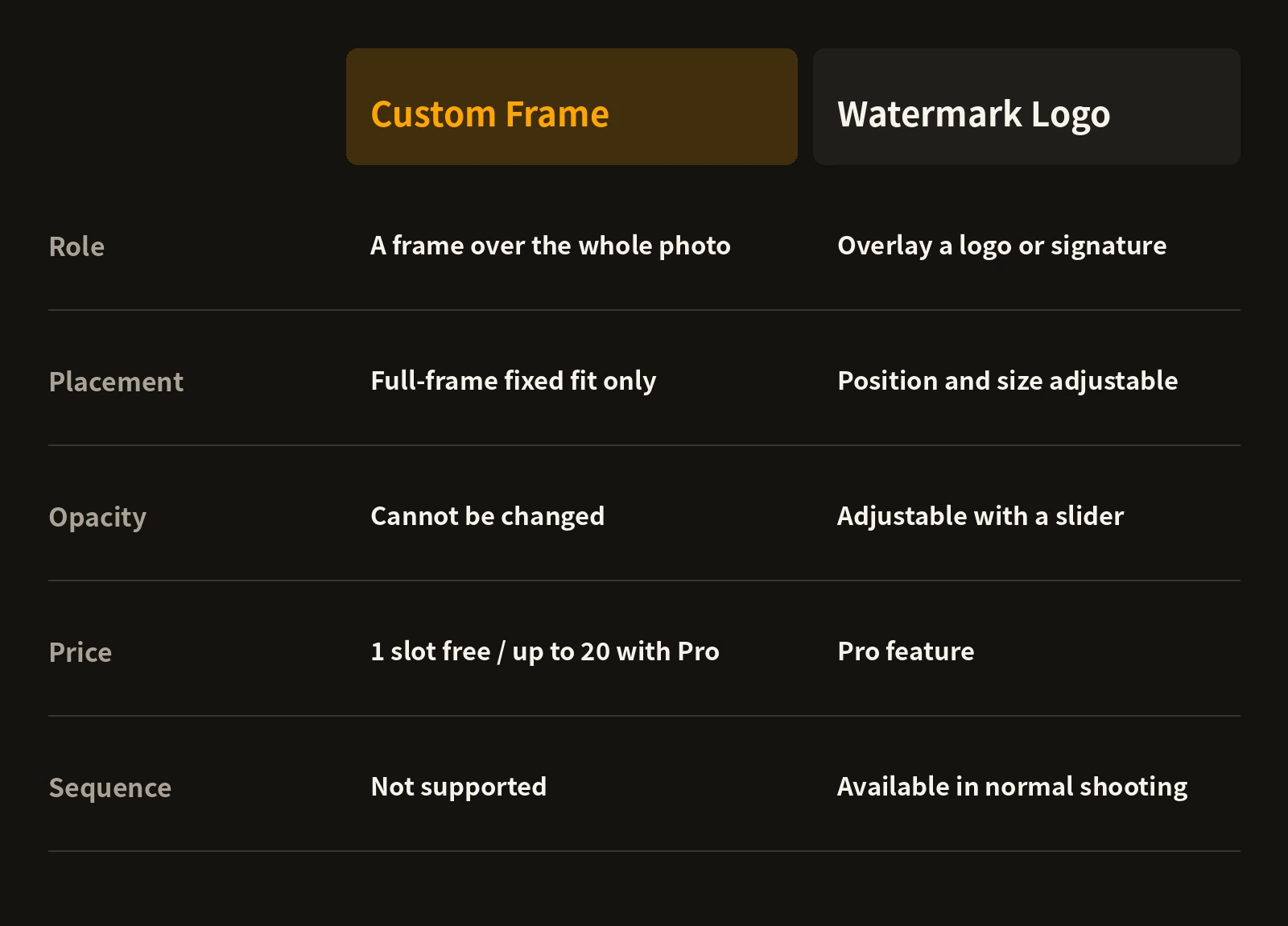
The table above compares the two features. A custom frame is a frame over the whole photo: fixed in place, with no opacity adjustment. A watermark logo sits at one spot, with adjustable position, size, and opacity. Use a custom frame when you want a frame around everything, and the watermark when you want a signature or logo — the watermark article covers its settings in detail.
The price boundary differs too: custom frames are free for the first slot, while the watermark is a Pro feature.
Where it does not fit, and where people trip up
Because a custom frame is fixed over the whole photo, the frame image must be prepared at the same aspect ratio as the photos you will shoot. Set a frame at a different ratio, and it is burned in without matching. Matching the frame's ratio to your shooting ratio is the decision to make first.
The centre of the frame must be transparent. Register an image with artwork across the centre, and that artwork lands directly on top of your subject. Keep the artwork around the edges and leave the centre empty — that is the premise of making a frame. How to make a custom frame walks through the steps.
Custom frames are not available in Sequence. Sequence, which gathers a series of shots into one record, works with the regular frames and the watermark; custom frames are for normal shooting.
A frame cannot be removed from a saved photo. Encadra is a shooting-only app and does not handle editing after saving, so setting the frame is something you check before you shoot.
The full picture of the app is on the Encadra page . Do not frame it later. Set it before you shoot, and let it enter the photo at the moment of shooting — that is Encadra's custom frame.