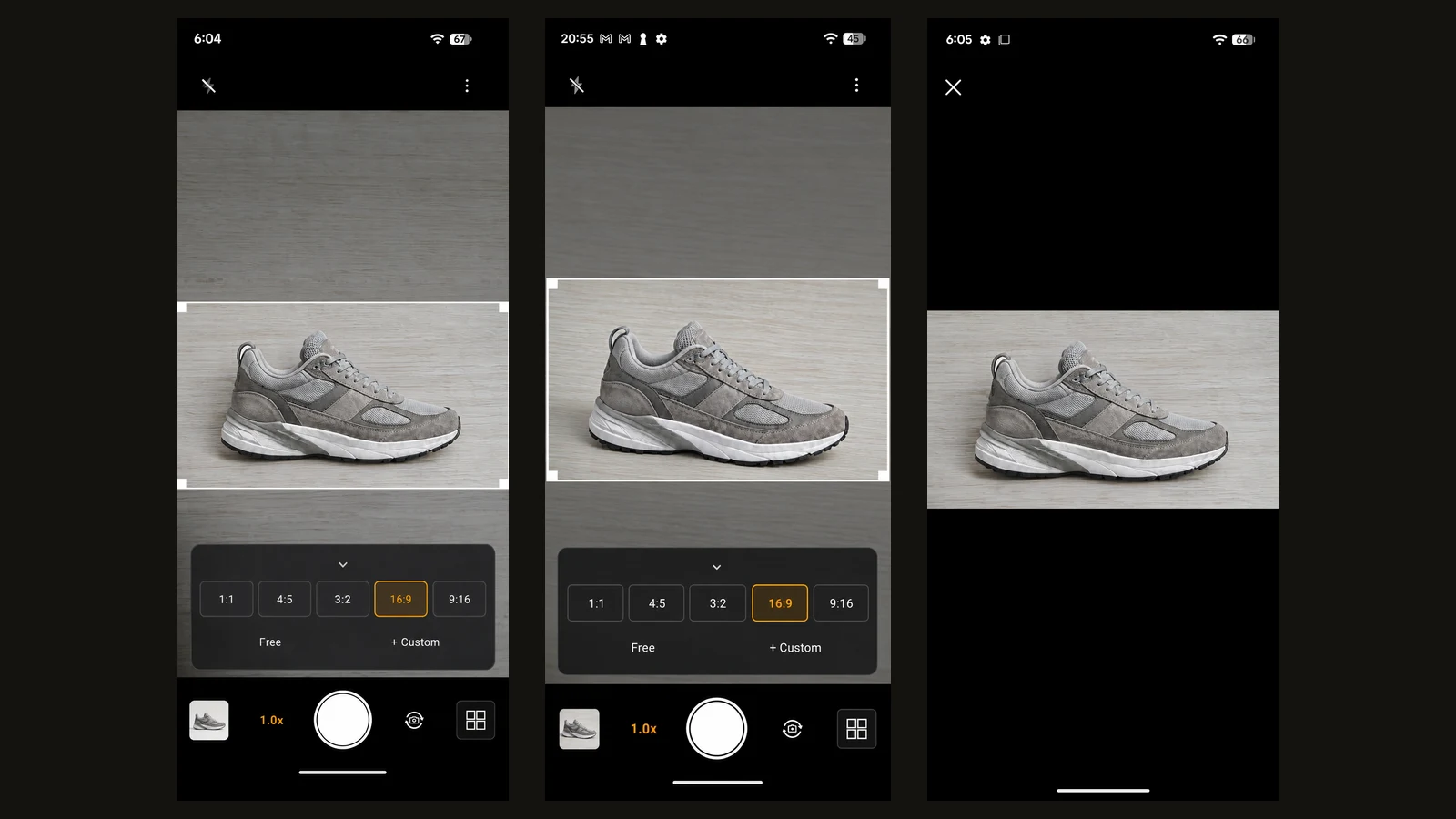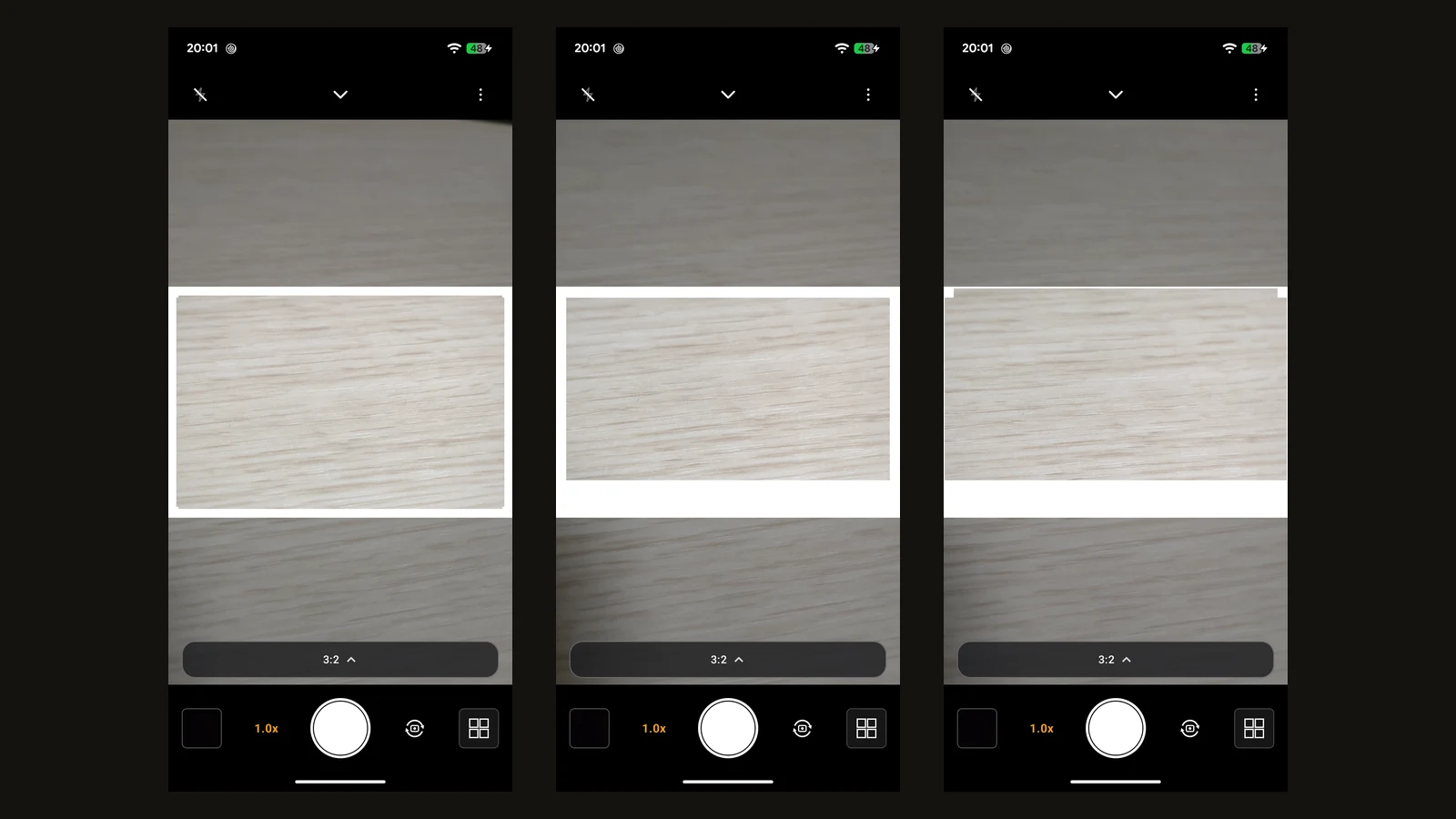
When you want a name, a date, or a logo on a photo, that work usually happens after the shot, as compositing. You open an editing app, pick the photo, place the text, paste the logo, and export it again. The photos that most need a signature or a record on them — listing photos, photos you hand over as finished work — are exactly the ones this extra step clings to.
Encadra's watermarks remove that order. Set them up before you shoot, and at the moment you press the shutter the photo is saved with the name, date, and logo already in it. A watermark here is not something Encadra puts on your photos; it is a Pro feature you add yourself, when you want it. This article covers those settings, and the adjustments that keep a watermark readable.
Adding it later means doing it for every photo
Compositing afterward repeats the same steps for every photo: select it, place the text and the logo, export it again. Because the position and size are matched photo by photo, settings that should be identical can drift slightly from one photo to the next.
Even a photo that was meant to be handed over as soon as it was taken is not finished until that work is done. If the name, date, and logo are already decided before shooting, their settings can live inside the shooting itself.
Two lines of text, nine places to put each
Watermarks are set up in their editor, which sits in the panel that opens from the top of the shooting screen. You can enter up to two lines of text of your own — a name, and one more short line, each with its own role.
Each line's position is chosen from nine places (a 3×3 grid). If you put both lines in the same place, they stack vertically. Sharing a place does not join them into a single line.
The editor with a line of text being set up looks like this.
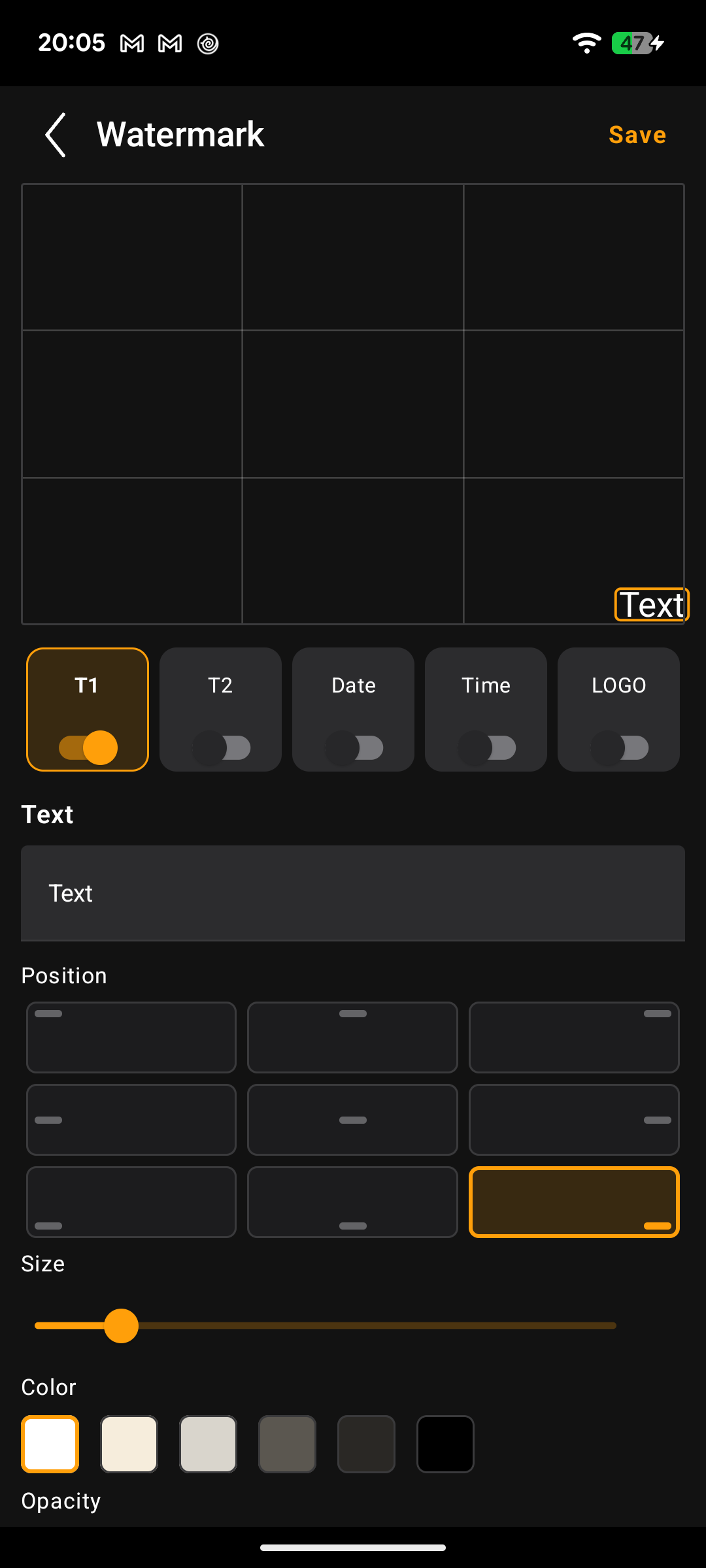
The image above is the text editor. The text you placed is previewed inside the frame the photo will fill, and its position is chosen on a pad of nine places. The size, color, and opacity of the text are also decided on this screen.
Text you set up also appears on the shooting screen, exactly as set. A shooting screen combining text with the bottom band frame looks like this.
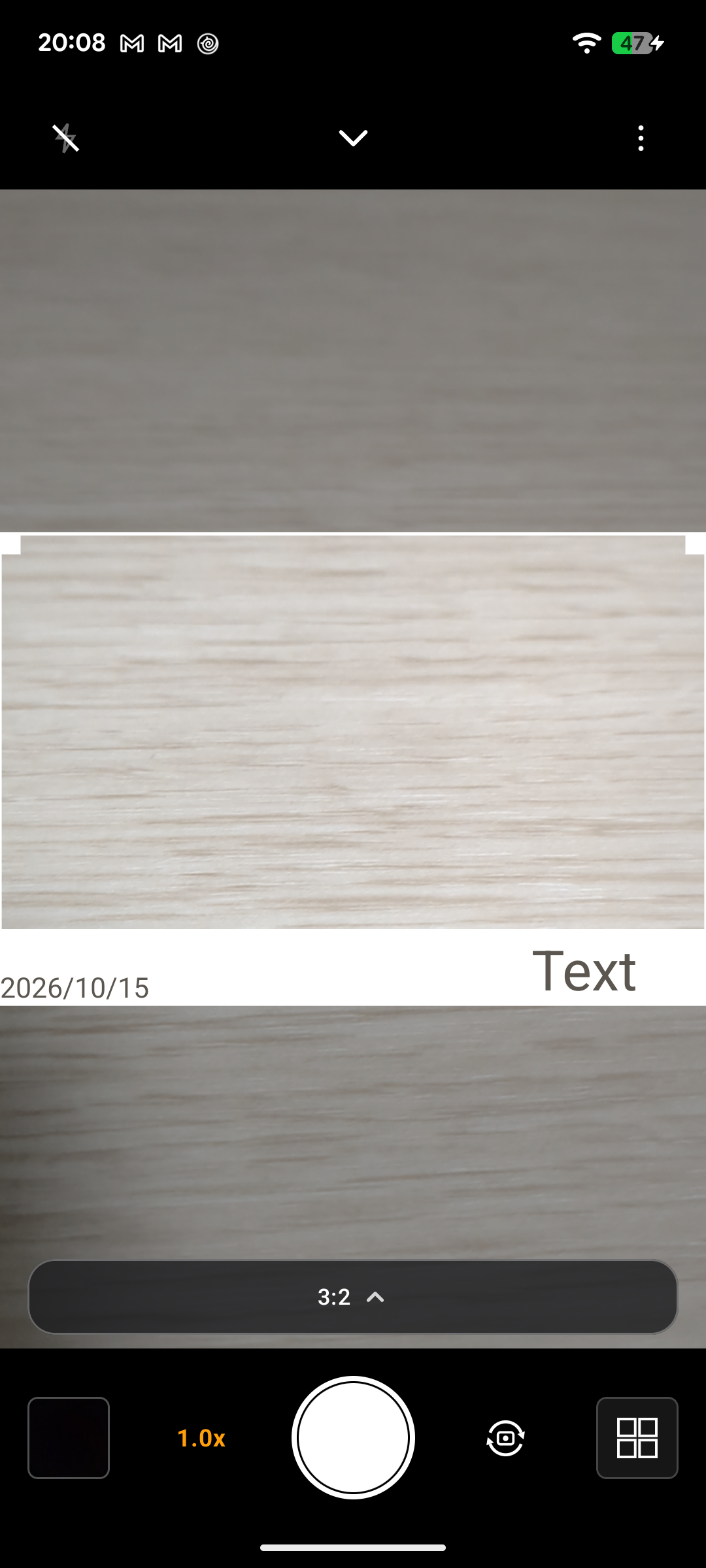
In the image above, a line of text sits on the right of the white band. What you can see on the left of the band is the date, which is the next section's subject. What the shooting screen shows is what gets saved.
Date and time go in separately
The date and the time are automatic items, separate from your own text, and each is brought in with its own switch. You can use the date only, the time only, or both, and each one's position is chosen separately from the same nine places.
If you put both in the same place, the date and the time are joined with a space and shown as a single line. In different places, each appears in its own place.
The format is fixed as yyyy/MM/dd HH:mm. The order and the separators cannot be changed. That will not suit you if you need a different format, but in exchange the whole setting is just whether to include each one, and where to put it.
The editor with the date being set up looks like this.
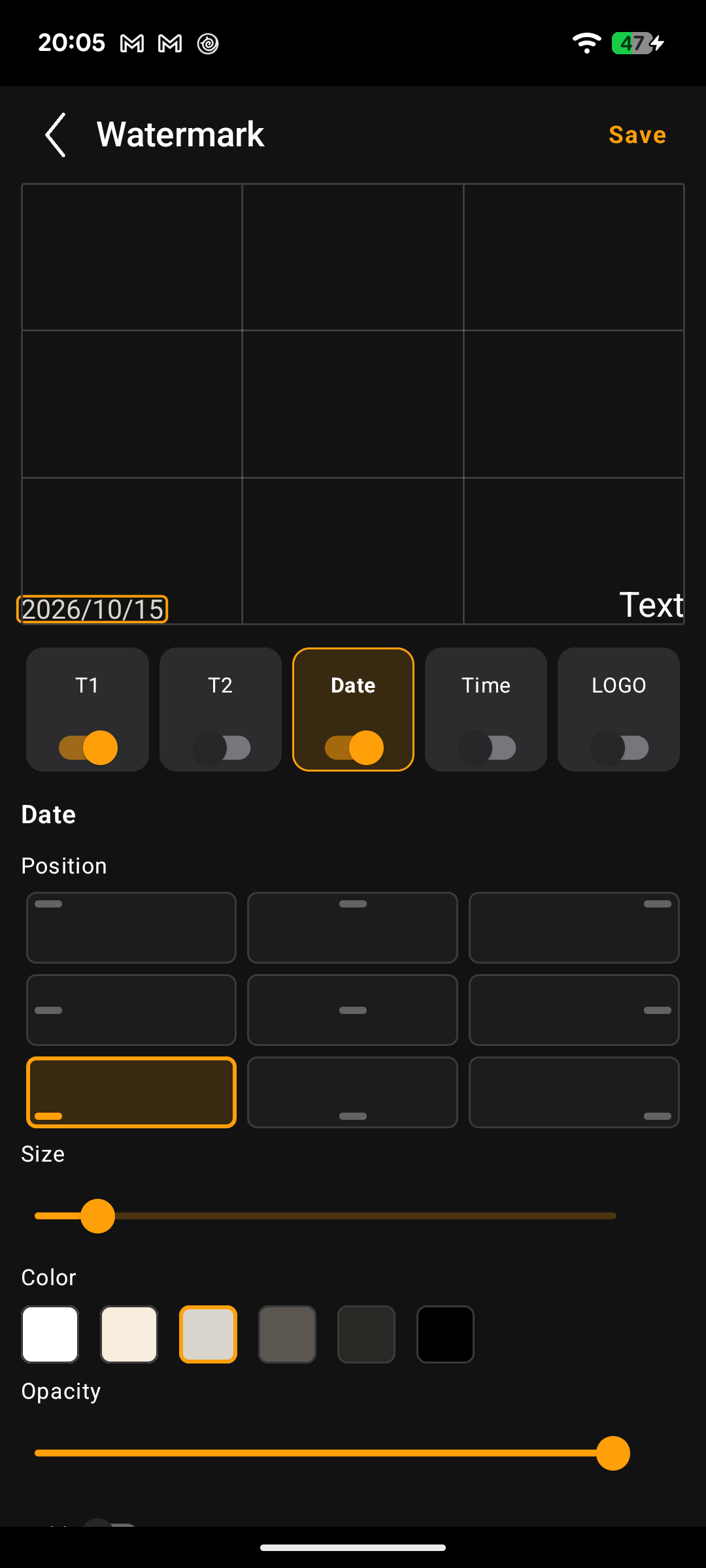
The image above is the date editor. The date is previewed at the bottom left of the frame the photo will fill, and the date item is the one selected. The time is built the same way: you switch items and set each one separately.
The date and time that go in are those of the moment you take the photo. Unlike a date composited in later, they are burned in on the spot, as a record of when the photo was taken.
One logo, placed anywhere, at any size
You can add one logo. You pick a logo image you have, from the device.
Unlike text, the logo is not placed from the nine set places; it is placed freely. You can put it anywhere on the photo, and change its size. It cannot be rotated.
The editor with a logo being set up looks like this.
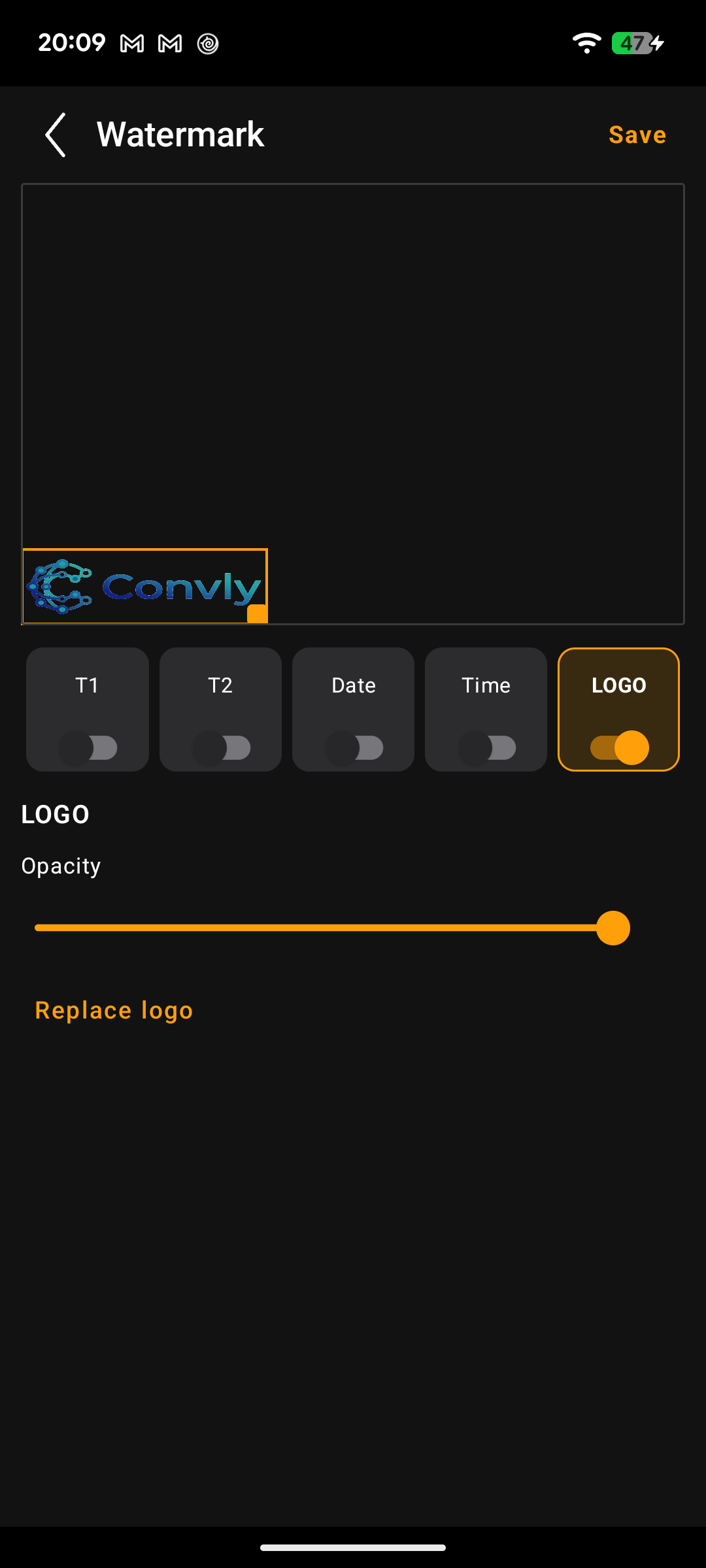
The image above is the logo editor. The logo sits at the bottom left of the frame the photo will fill, and while it is selected it is shown with a border and a corner handle. Those are how you adjust its position and size. The logo's opacity can also be changed.
When you replace the logo with a different image, the new image inherits the position and size you already set. Only the image changes; there is no need to set the placement up again.
Size, color, and opacity keep it readable
A watermark sits on top of the photo, so how readable it is changes with the light and dark of the picture. Pale text sinks into a bright area, and dark text is buried in a dark one.
The way to match it is to change the size, color, and opacity of each item. Making text larger makes it easier to read, but it also gets in the photo's way, so you combine the three: change the color, lower the opacity, and adjust.
The editor with the adjustment items looks like this.
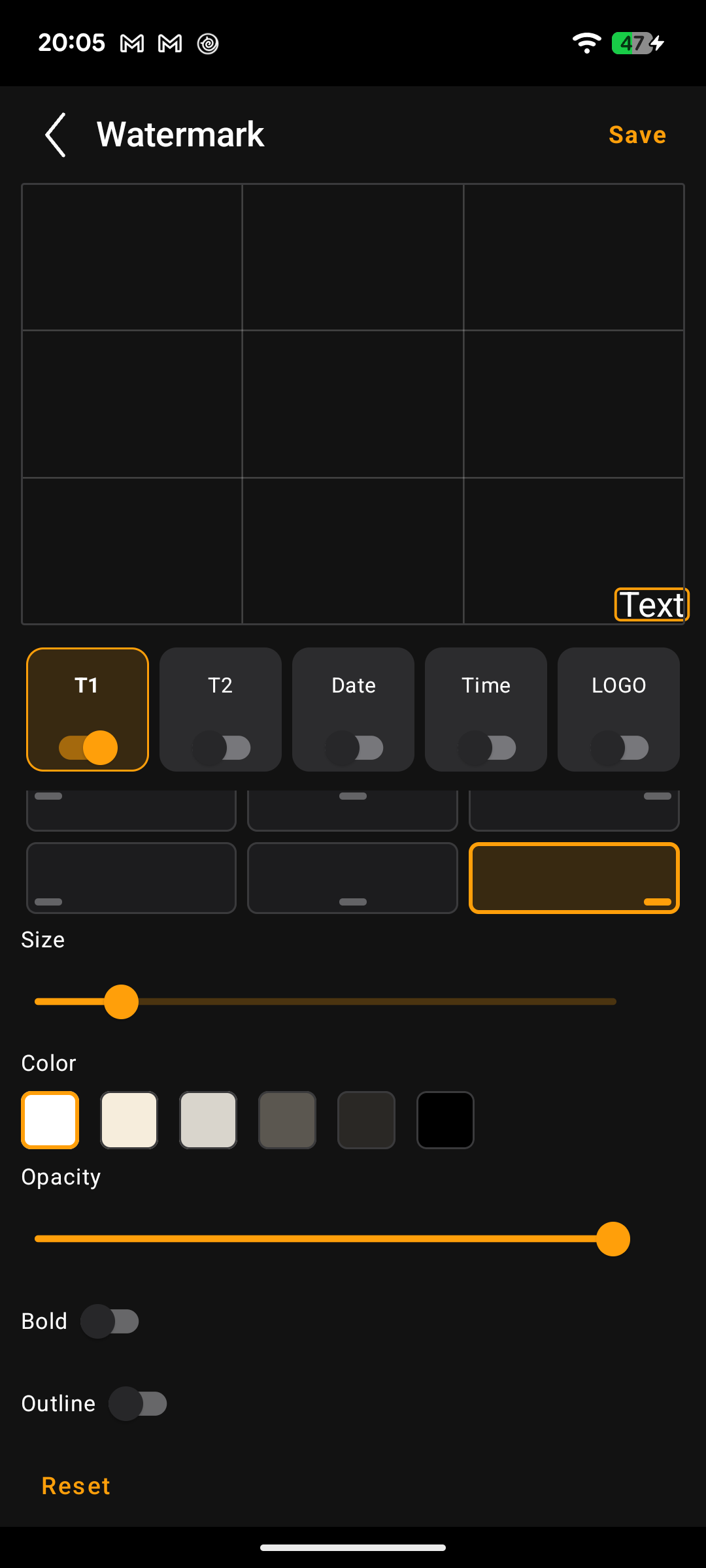
The image above is the editor scrolled to the bottom. Sliders for size and opacity sit alongside the color choices. The same screen also has switches for bold and for an outline. The outline is something you only switch on or off; its color and thickness are decided automatically to match the text.
The other way to keep a watermark readable is to put it on the bottom band of a frame. The band's color is uniform, so reading the watermark no longer depends on the light and dark of the photo. The band itself is a frame feature, covered in the article on frames .
A shooting screen with a logo and the date riding on the bottom band looks like this.
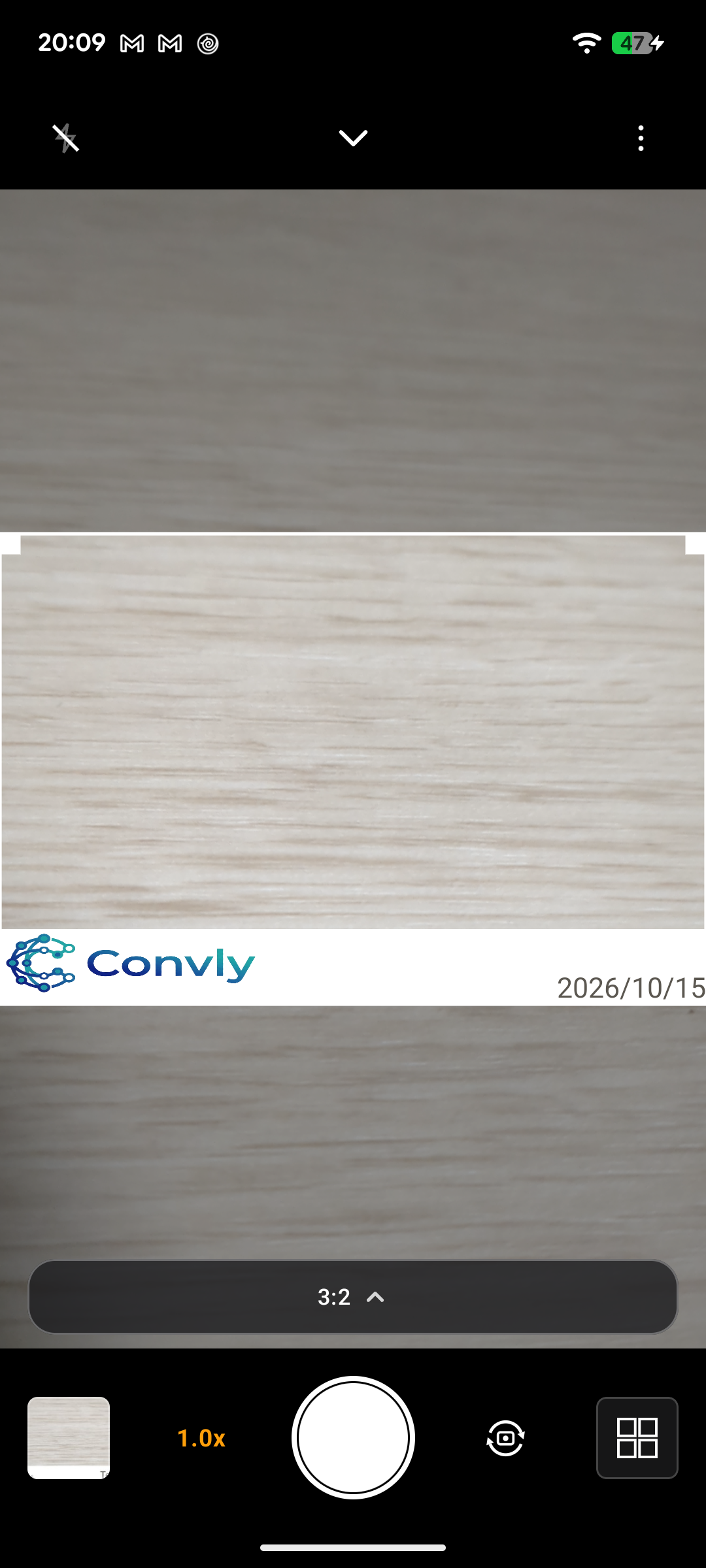
In the image above, the logo rides on the left of the white band, and the date on the right. On a photo with no band, the watermark sits directly on the photo. Which suits better is chosen photo by photo.
Where watermarks work, and where Pro begins
Watermarks work in both regular shooting and Sequence. The stacking order is photo, then frame, then watermark, and what you see on the shooting screen is what gets saved. Adding a watermark does not change the saved photo's size or ratio.
Watermarks are a Lifetime Pro feature: text, date and time, and the logo are all on the Pro side. At the same time, Encadra never forces a watermark onto a free user's photos. Watermarks are there for people who want to add their own.
A watermark cannot be removed from a photo once it has been saved. Encadra is a shoot-only app and does not edit saved photos. That is why the watermark settings are something you check before you shoot.
For the full picture of the app, see the Encadra page . Your name, date, and logo are not composited in later. They go into the photo at the moment you shoot. That is what Encadra's watermarks are.