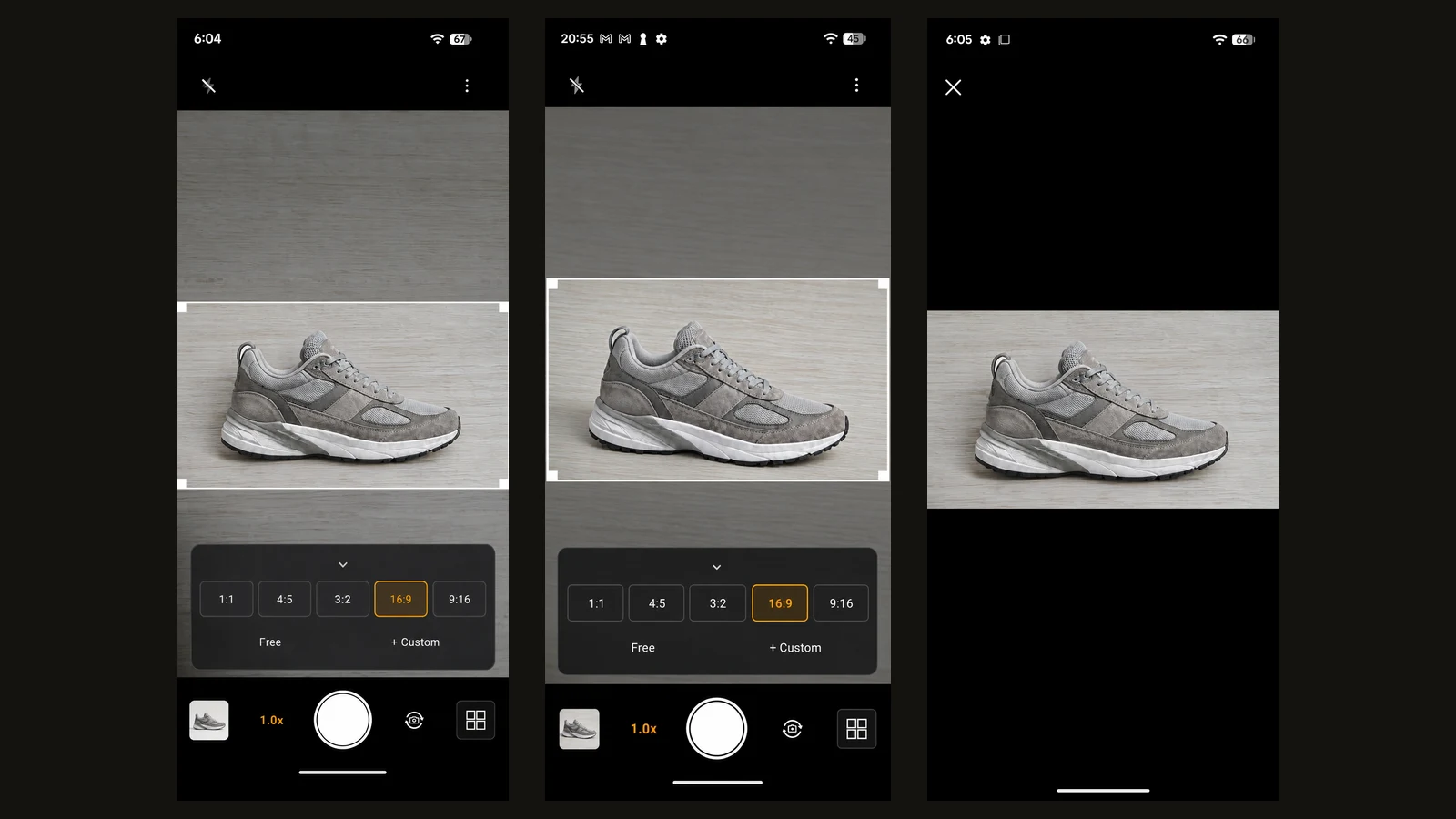
Some subjects come with their shape already decided: a sign filling the frame, the inside of a picture frame, a single shelf. In those moments, the photo's ratio ends up chosen from a list of standards, not from the subject.
Encadra's Free mode takes the ratio away. Instead of choosing one, you set the frame's width and height separately, and fit the frame to the subject.
Some subjects don't fit any ratio
Encadra's standard ratios are 1:1, 4:5, 3:2, 16:9, and 9:16, and Custom lets you define a shape by numbers. Even so, some shapes fall between all of them.
Signs and exhibits are like that: the area you want to capture is decided before you shoot. Wider than 4:5 but not as thin as 16:9, or the height needs trimming by just a little. Ratios are a fixed set of shapes, so they don't always match the subject.
You could crop afterwards, but if cropping is the plan, you haven't decided what the photo contains at the moment you take it.
How Free works
Free sits in the lower row of the ratio panel. Open the panel and choose Free, and the frame first appears at the full size of the preview. Then drag the corner handles to set the width and the height independently. When the shape is set, press the shutter with that frame.
Free is a Pro feature. If you haven't purchased it, it carries a lock mark, and choosing it brings up the purchase screen.
A screen with Free chosen looks like this.
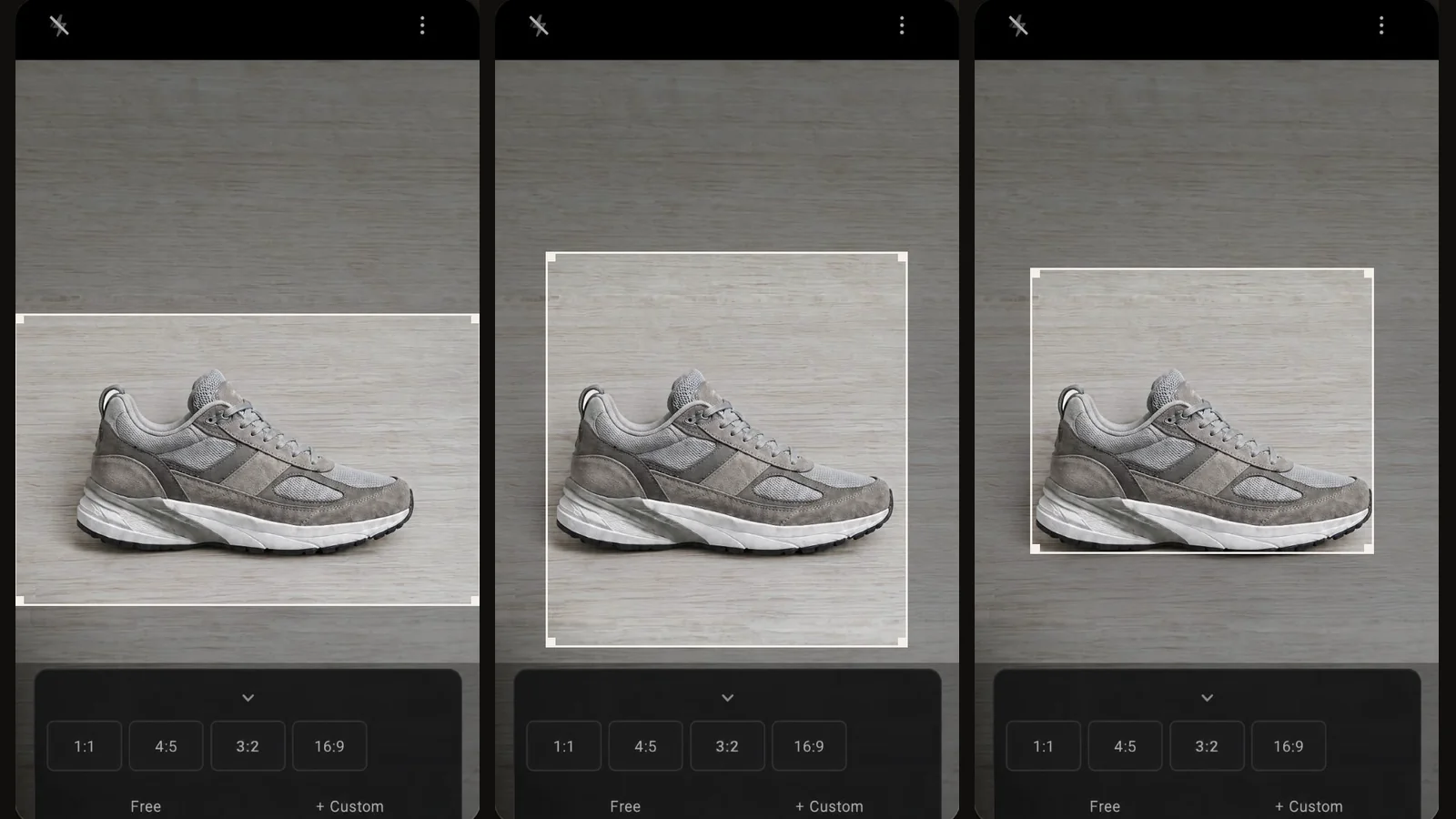
The three screens show Free frames with the width and the height set separately for the same sneaker. In every screen the frame stays at the center, and in the panel below Free sits alongside the standard ratios. Only what's inside the white frame is saved.
The frame stays centered — it doesn't move
In Free, the only things you can change are the width and the height. The frame's position never moves. It is always at the center of the preview, and dragging a handle resizes it symmetrically around that center.
Free is not for sliding the frame over to a favorite spot. If the area you want sits off-center, you move the phone, not the frame. Free decides the shape of the area you capture, not its place.
The rules for the frame's size
The frame's shorter side has a floor: it can't go below 25% of the preview's shorter side. Cutting out a tiny piece of the subject isn't what Free is for.
Dragging the corners is the only way to change the frame. A two-finger pinch is reserved for camera zoom and doesn't resize the frame. Tapping the screen sets focus and exposure.
If you make the frame small, the saved photo's shorter side gets small too.
Free or Custom?
The deciding question is whether the shape you want is fixed as numbers.
If it is — say, 8:5 — Custom is the better fit: define it once and keep it in the ratio bar. The article on custom ratios covers how to make one.
If the shape can only be decided in front of the subject, that's Free. You watch the subject and fit the width and height on the spot.
The size you set stays as you keep shooting, as long as you don't switch to another ratio or mode. Switch, and the frame returns to that mode's maximum. The size isn't stored, so reopening the app also starts from the maximum frame.
For the full picture of the app, see the Encadra page . When no ratio fits the shape, set the frame's shape rather than the ratio. That's what Free is for.