Sometimes the request arrives with the shape already decided: "8:5, please." The shape of the photo is set by whoever receives it, but a camera's presets only cover a handful of ratios.
Encadra's Custom is the feature that makes a ratio out of two numbers from 1 to 99 and lines it up on the bar. The day a request specifies 8:5, the shape can be settled on the spot.
When the job specifies a ratio the presets don't have
The destination is fixed in advance. An e-commerce product image is square, a print layout is 8:5, a web banner is 3:4. The shape is known before the shot, yet 8:5 is not among Encadra's five standard ratios: 1:1, 4:5, 3:2, 16:9, 9:16. For a ratio that is missing, there are two routes: crop after the shot, or make the ratio before it.
Cropping afterwards means the finished shape is invisible while you shoot. Where to place the subject and how much margin to leave can only be judged after the crop. Shoot in 3:2 with an 8:5 crop in mind, and the subject ends up smaller, because the top and bottom are thrown away.
If the shape is fixed before the shot, the composition is decided on the spot. Encadra is a camera that shows the finished form before you shoot, and only what sits inside the frame is saved. The only extra step appears when the specified ratio is not one of the presets.
This is the shooting screen with an 8:5 ratio made and selected.
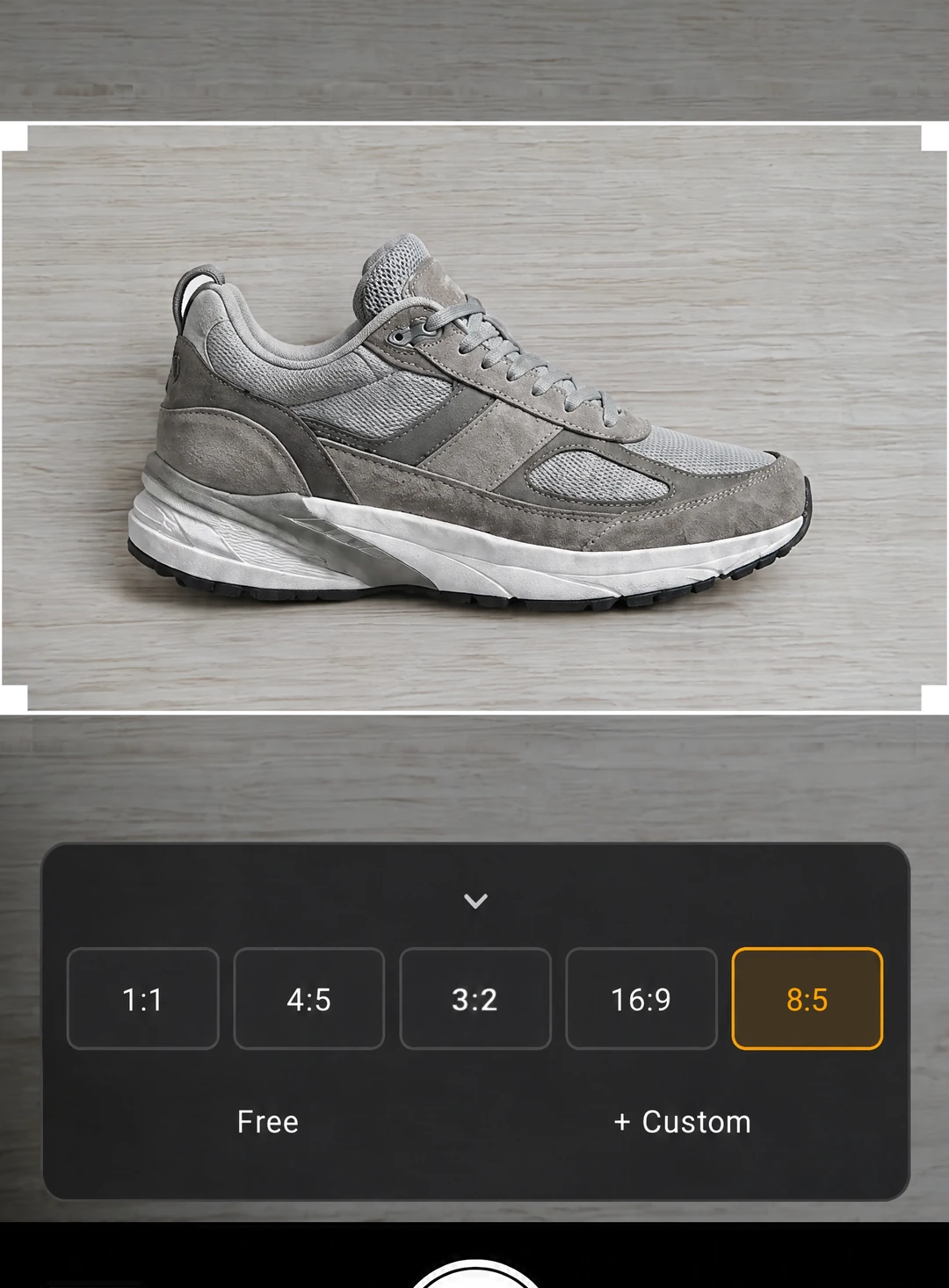
The image above is the screen while shooting at 8:5. The area inside the white frame is what gets saved, and 8:5 is the selected chip on the ratio bar.
How to make a custom ratio
Open Custom from the ratio bar, type the two numbers, and save. Where the new ratio sits on the bar is decided in the same step.
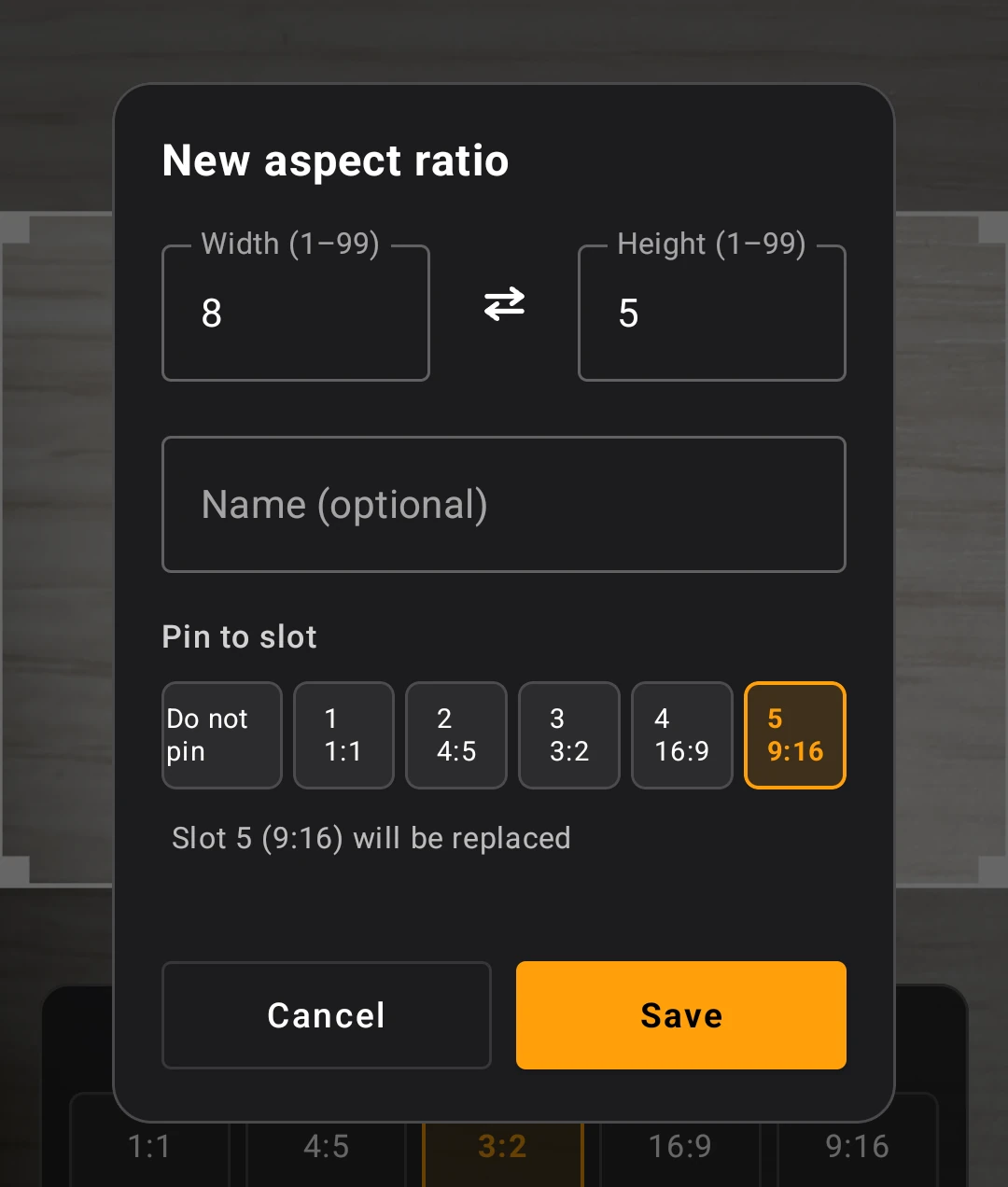
The image above is the screen for making a ratio. Each side takes a number from 1 to 99, and the arrow in the middle swaps the two sides. The name is optional; the ratio can be saved with the field left empty.
The lower part of the screen chooses where the ratio goes on the bar. Picking a place that already holds another ratio shows, on screen, that the place will be replaced. Places you do not pick are left exactly as they are.
A saved ratio becomes a chip on the bar
A saved ratio joins the ratio bar as a chip. From then on it works like any standard ratio: one tap switches to it.
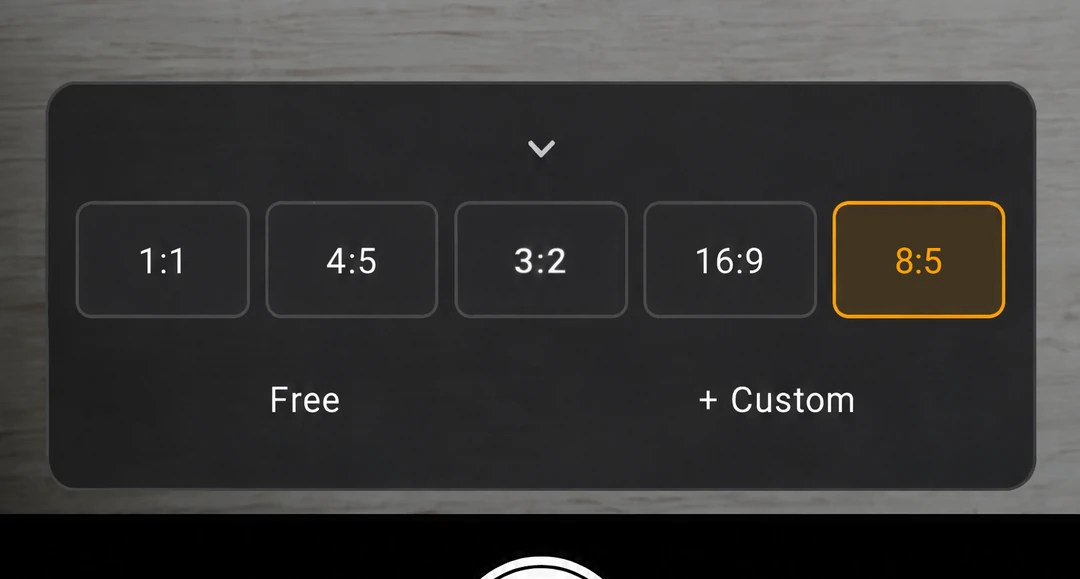
The image above shows a made ratio sitting in the fifth place on the bar. The bar holds at most five entries, and those five places are shared between the standard ratios and Custom. At first the five standard ratios fill the bar, so when a Custom takes a place, the standard ratio that was there leaves the bar. A standard ratio that leaves is not deleted: type the same shape on the Custom screen, and it returns to that place.
Making a sixth ratio does not extend the bar; it replaces an entry. The step is the same as on the creation screen: choose the place to replace. The bar is designed to keep only the ratios in regular use.
Shooting then happens inside the selected ratio's frame, and the saved photo has exactly that shape. No cropping step follows.
You don't have to pin it to use it
A ratio that is not needed every day does not have to stay on the bar. For a one-off specified size, there is a way to use the ratio without placing it.
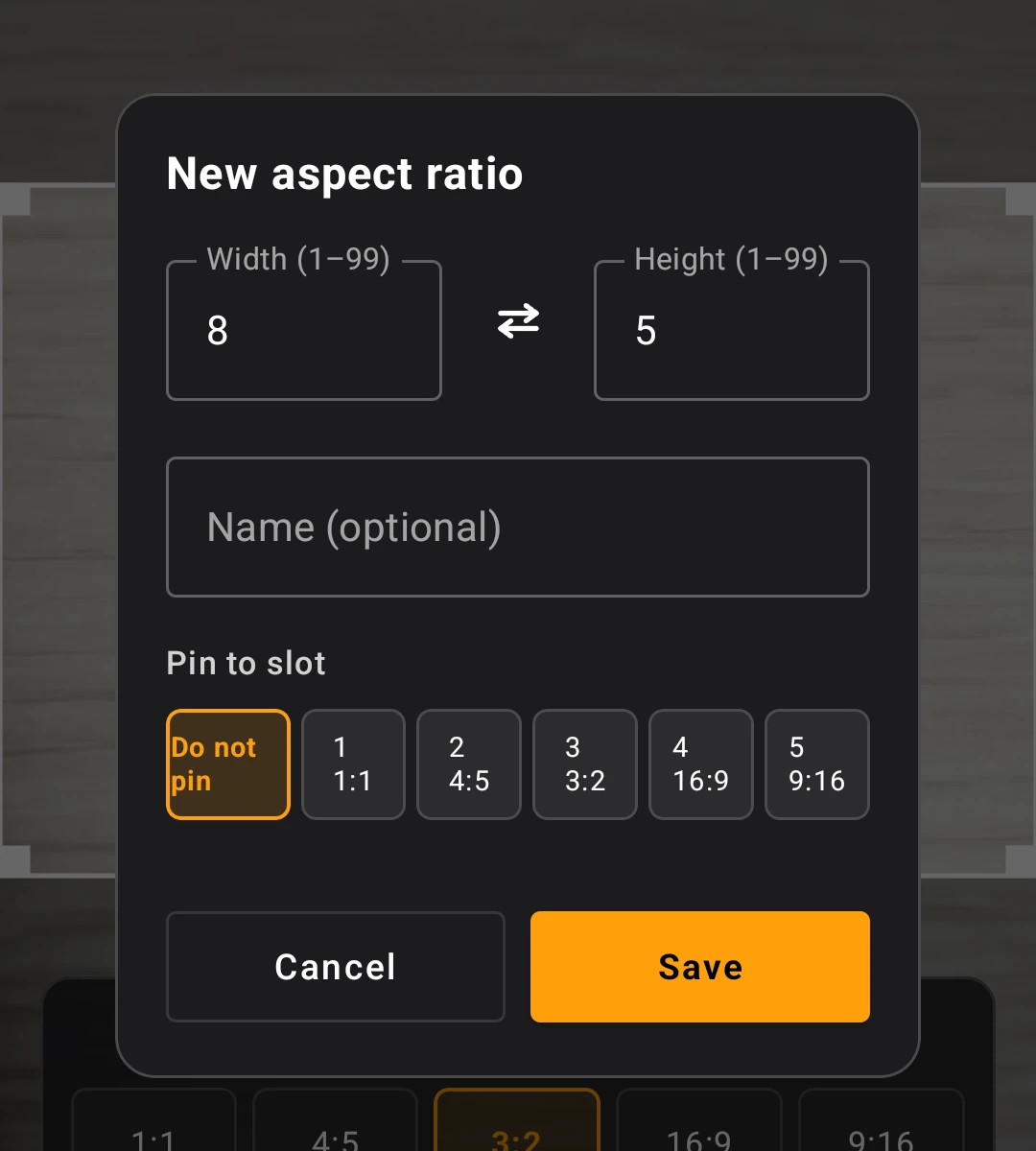
As the image above shows, the creation screen offers the option not to pin. With that choice, the made ratio applies to the current shooting only, and stays in effect until a different ratio is selected.
This choice also helps when you cannot decide which entry to give up: the existing order of the bar is never touched. Used without pinning, 8:5 can be shot without pushing any standard ratio off the bar.
8:5 and 16:10 count as the same ratio
Try to make 16:10 after making 8:5, and the app treats them as the same ratio. Duplicates are judged not by the numbers as typed, but by the reduced form. Reduced, 8:5 and 16:10 are one shape.
So the same shape never appears twice on the bar, and it cannot be registered again under a different name.
Next time, only the shape remains
What carries over to the next launch is only the ratio and its name. What resets is the selected ratio: reopen the app and the selection starts from 3:2.
The frame's size and position do not stay. While you keep shooting, the app remembers the frame size for each ratio, but reopening the app returns the frame to its largest size. The fit you adjusted does not carry over; only the shape carries over.
The line between free and Pro is clear for this feature, too. Shooting with the five standard ratios is free. Creating a Custom ratio and placing it on the bar are Pro features, and using a ratio without pinning it is one of the ways to use Custom, so it sits inside Pro as well.
The full picture of the app is on the Encadra page . When a specified shape like 8:5 arrives, the answer is not to crop after the shot, but to make the ratio before it. That is what this feature is for.