A wide subject makes you want to hold your phone sideways. But shoot a Sequence in Encadra that way, and the photo it saves can come out upright — not in the direction you shot it.
This article is only about the saving orientation of Sequence photos, not about regular shooting. The basics of Sequence are covered in the article on series photos ; here the focus stays on how the direction you held the phone becomes the direction of the saved photo.
Shot sideways, saved upright
Sequence combines a few photos into a single saved photo. The outer frame is chosen from portrait ratios, and there is no setting that turns the result into a landscape photo.
So even if you hold the phone sideways to shoot, the photo is saved upright by default. A photo you wanted to show sideways is left upright, and rotating it and saving it again becomes extra work afterward — with the photos inside it to straighten as well.
The direction you held the phone and the direction of the saved photo disagree. There is a second way to save that removes that disagreement.
The screen does not rotate
First, one thing about this shooting screen needs to be clear: the Sequence shooting screen is locked to portrait. Holding your phone sideways does not rotate the display.
Captured while held sideways, the screen looks like this.
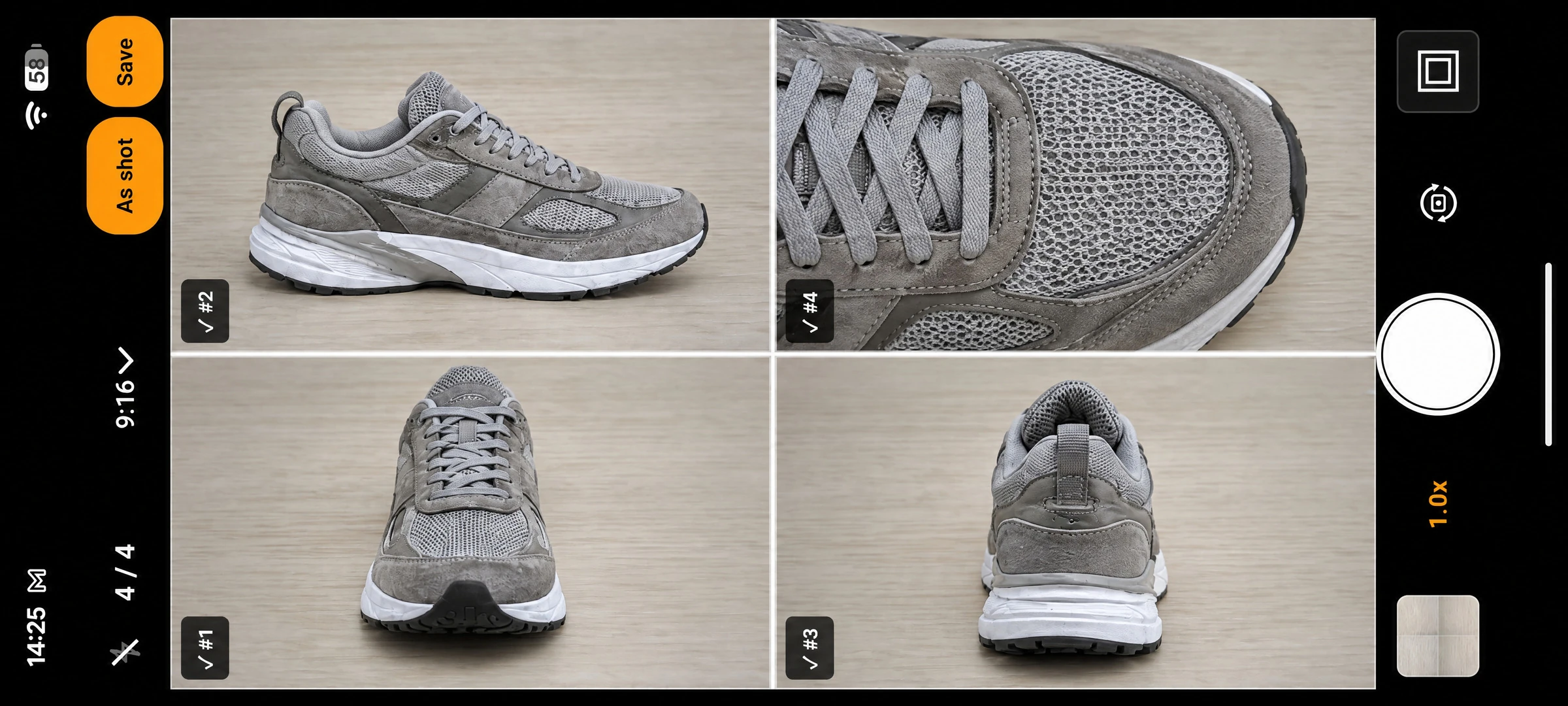
Everything on screen keeps its portrait layout, so inside the wide screenshot the buttons and labels appear turned on their side. The display never turns to follow how you hold the phone.
Along the left edge of the sideways screen are two buttons for saving. The difference between those two is the subject of this article.
The first shot's tilt is remembered
In Sequence, every shot records the tilt of the phone at the moment it was taken. The tilt that matters when saving is the one from the first shot of the series.
Turning the phone in the middle of a series does not change the tilt used for saving. What decides it is how you held the phone for the first shot. Shoot the first shot sideways, and the series is treated as one shot sideways.
If the first shot was taken holding the phone upright, there is no sideways save. The direction is decided not by how you hold the phone at the moment of saving, but by how the first shot was taken.
Tap As shot, and save in the direction you shot
Once every photo in the series is taken, the save buttons become available. There are two: Save and As shot.
Save saves in the default portrait orientation. However the first shot was held, the result is an upright photo.
As shot saves by applying the first shot's tilt. If the first shot was taken holding the phone sideways, the saved photo is a landscape one. There is no rotating and re-saving to do afterward.
A photo saved sideways looks like this.
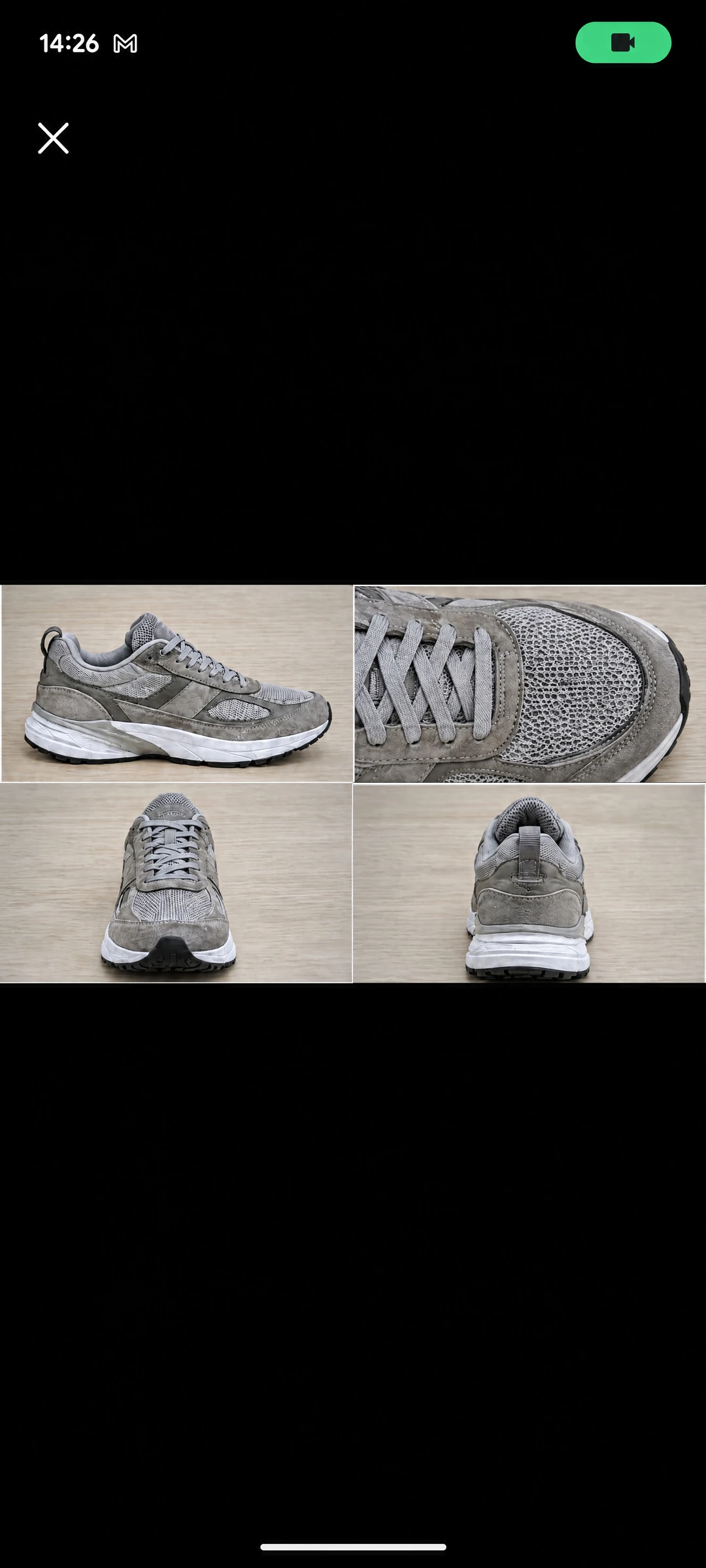
Only the photo remains, in landscape; none of the shooting screen's buttons or frames are in it.
The app also contains a guide that shows how orientation is handled.
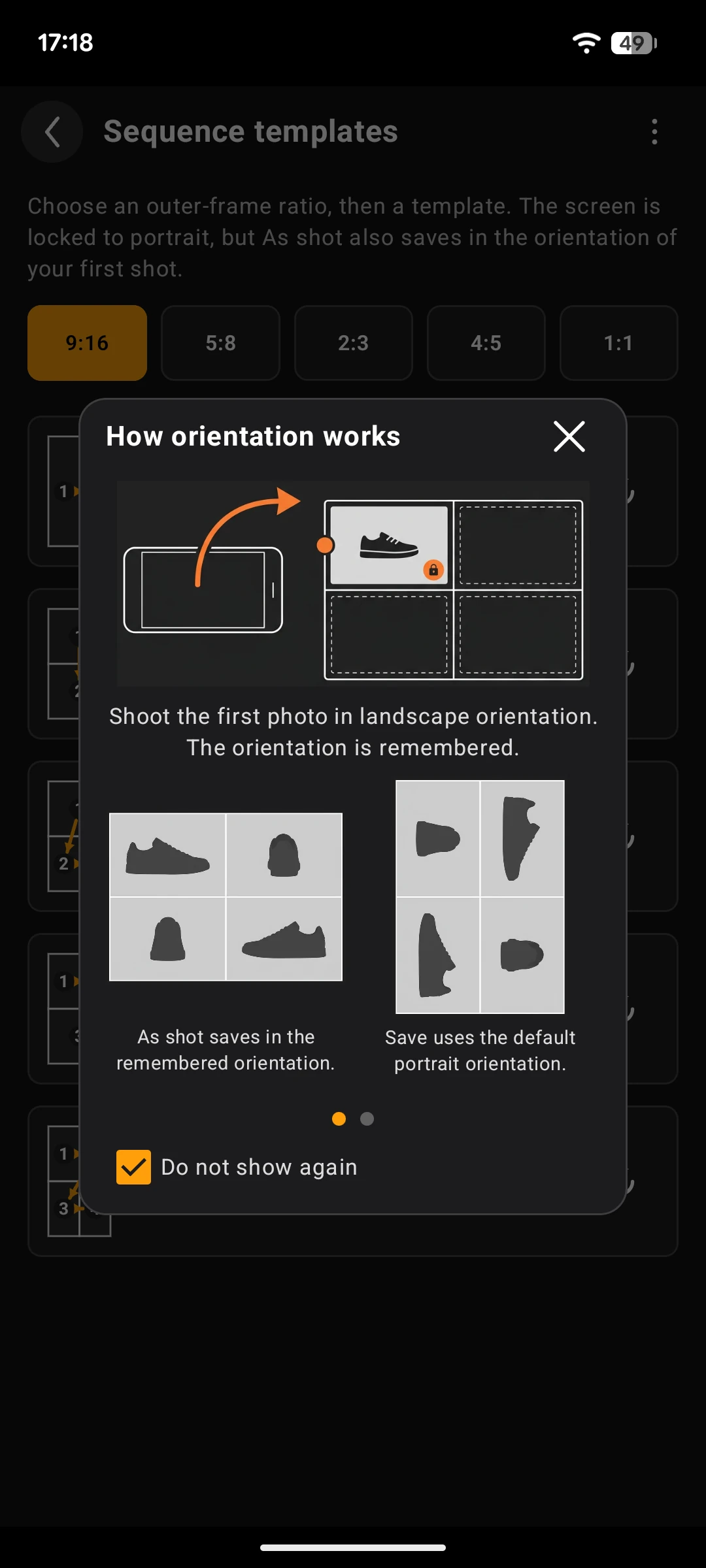
The guide shows, with diagrams, that shooting the first photo sideways makes the app remember the orientation, that As shot saves in that remembered orientation, and that Save uses the default portrait orientation.
Which of the two you use is chosen at saving time. There is nothing to decide before you start shooting.
If you change your mind about the orientation
The saving orientation is not fixed when you start. If you change your mind partway through, you do not have to throw the photos away and start the series over.
If you shot sideways but decide you want the photo upright after all, just choose Save when saving. The opposite does not work: a series you started upright cannot be saved sideways, because the first shot's tilt is what decides it. In that case, retake just the first photo, holding the phone sideways. The other photos stay as they are.
Turning the phone during a series changes neither the screen nor the saving orientation. There are only two ways to affect it: which save button you choose, and retaking the first photo.
Once a photo has been saved to your photo library, its orientation cannot be changed inside Encadra. The orientation decision belongs to the moment of saving.
For the full picture of the app, see the Encadra page . Do not fix the orientation afterward — save in the direction you first framed. That is what As shot is for.