Some photos are meant to be seen side by side: the front and side of a product, a job before and after, a subject changing little by little. If you shoot those one by one, you are left with the work of lining them up into a single photo afterward.
Encadra's Sequence shoots a few photos against a fixed layout and saves them as one photo, right in the shooting process. The arranging happens while you shoot, not after.
Lining them up afterward is work left over
Photos shot separately rarely match in framing or size. To show them together, you end up in another app, aligning the layout and adjusting the gaps.
When the arrangement is not decided before shooting, some parts also sit awkwardly next to each other. Deciding the layout first removes that adjustment work.
Choose the outer-frame ratio, then a template
In Sequence, you first choose the shape of the finished photo (the outer-frame ratio) and then the layout (the template), in that order.
Sequence is a Pro feature. If you have not purchased Pro, it appears with a lock mark, and selecting it shows the purchase screen.
The template selection screen looks like this.
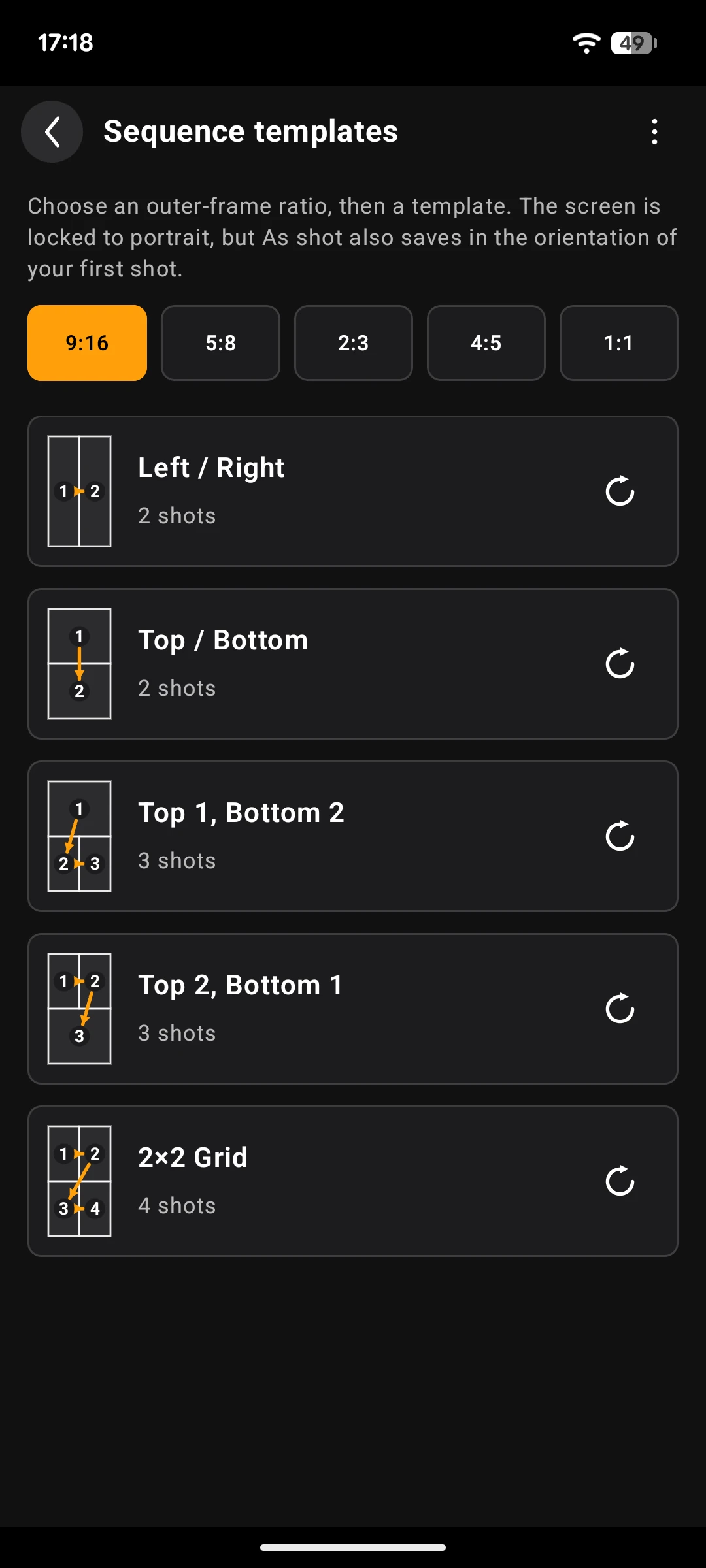
The top row holds the outer-frame ratios: 9:16 by default, plus 5:8, 2:3, 4:5, and 1:1. Below it is the template list: Left / Right, Top / Bottom, Top 1 Bottom 2, Top 2 Bottom 1, and the 2×2 Grid — five templates. A series takes two to four shots, and the cells cannot be moved or resized.
The template and ratio you used last time are kept, so the next time you open Sequence you go straight into shooting with them.
Two ways to change the shooting order
Shooting normally follows the numbered order. The cell you are about to shoot shows the live camera view, and cells already shot show their photos.
There are two ways to change that order. The first is the cycle icon on each row of the template list. Each tap moves to the next shooting-order preset. The presets are fixed per template: two each for the two- and three-cell templates, and four for the 2×2 Grid. The order you choose is kept and used again next time.
The second way is to tap a cell directly on the shooting screen. The tapped cell becomes the next one to shoot, so you do not have to follow the numbered order.
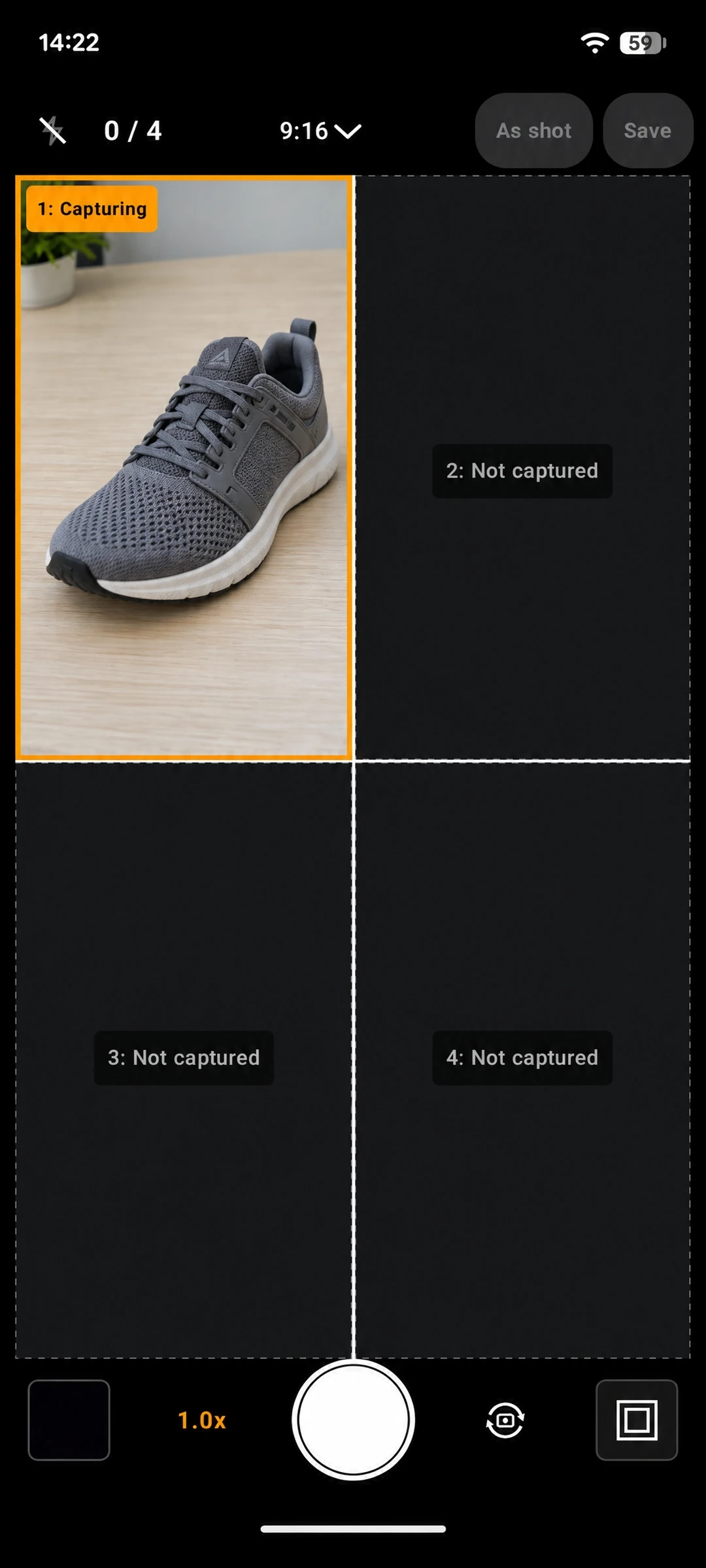
Only the cell being shot shows the live camera view; the rest are marked as not captured. The counter at the top left shows your progress.
Retake a single cell
Even before the series is complete, you can retake just one cell you are not happy with. Tap a captured cell to select it again and shoot it over.
Only the selected cell is replaced; the photos in the other cells stay as they are. One bad cell does not mean starting the whole series over.
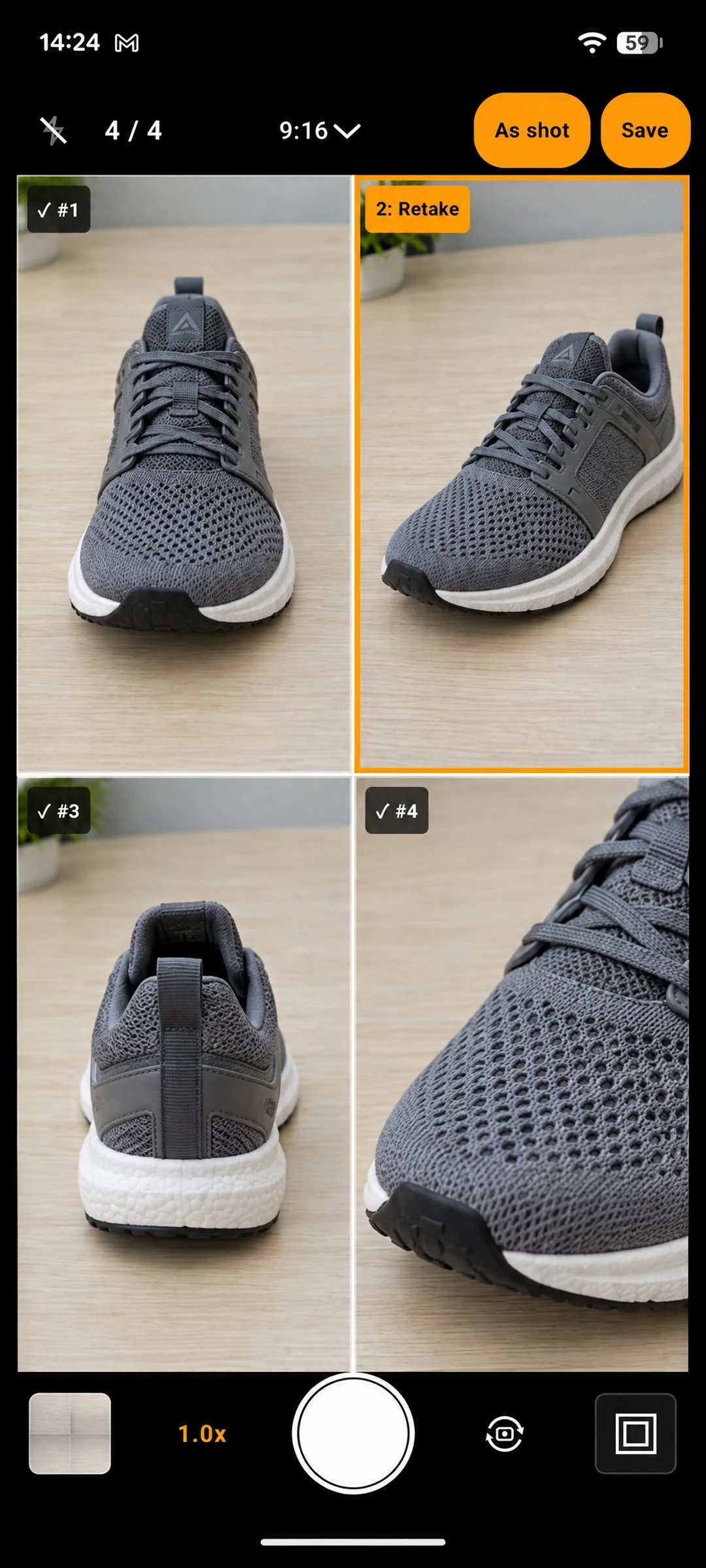
The selected cell is marked for retake with a frame, and the other cells stay as captured.
Saved as a single JPEG
Once every cell is filled, you can save. What is saved to your photo library is only the single finished photo. The original cell photos are kept temporarily and are deleted after a successful save. If saving fails, they are kept, and you can retry as is.
With every cell filled, the screen looks like this.
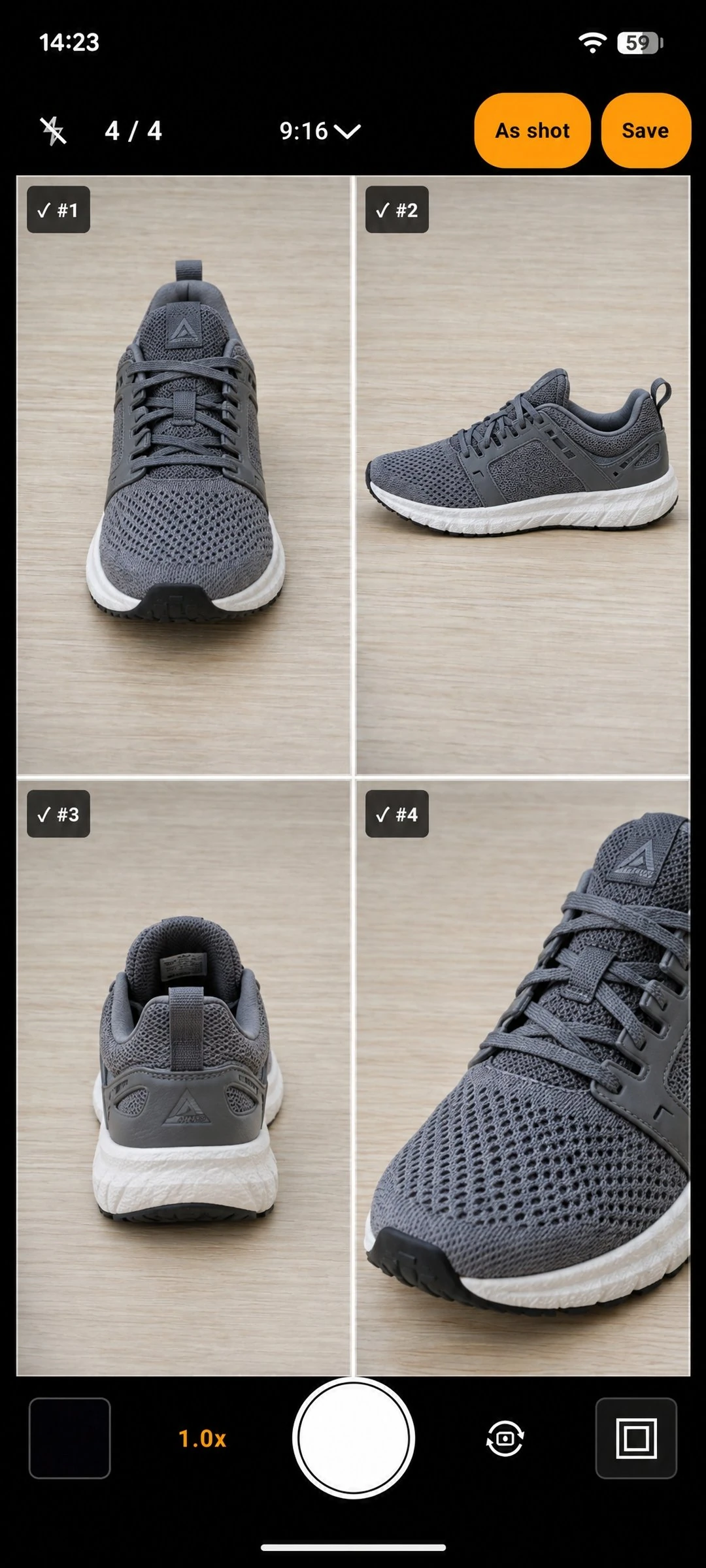
Each cell shows a check and its number, and the save buttons appear at the top.
Next to Save there is also an As shot button, which saves in the orientation of your first shot. How that works is outside the scope of this article.
The output size is based on a long edge of 3840px: 2160×3840px for a 9:16 frame, 2400×3840px for 5:8, and 3840×3840px for 1:1. If a cell photo is too small to reach that size without enlargement, the whole photo is scaled down proportionally. If the saved photo's short edge would fall below 1080px, a warning appears on the shooting screen.
The saved result can be viewed as a single image.
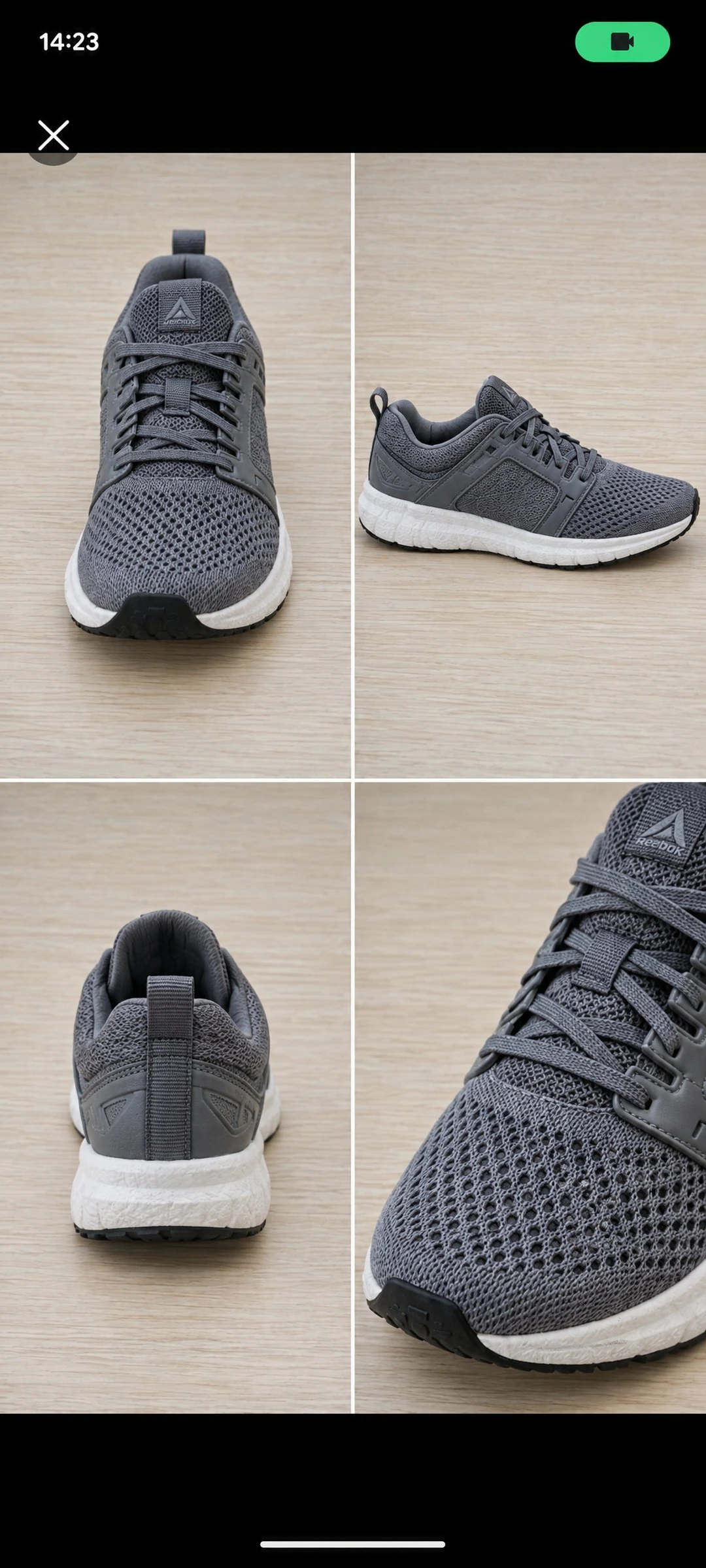
None of the shooting screen's frames or buttons remain — only the photo.
The screen stays in portrait
The Sequence shooting screen is locked to portrait. Turning your phone sideways does not rotate it, and the outer-frame ratios are the five portrait ones. Only the screen is locked, though: if you choose As shot when saving, the photo is saved in the orientation of your first shot — shoot the first cell sideways, and the result is a landscape photo.
You can switch templates in the middle of a series, but if any cells are already captured, a confirmation appears first. Switching discards the captured cells.
The divider lines between cells can be turned on or off from a panel on the shooting screen, and that choice is reflected in the saved photo.
For the full picture of the app, see the Encadra page . Not lining photos up afterward, but finishing with one photo as you shoot — that is what Sequence is for.