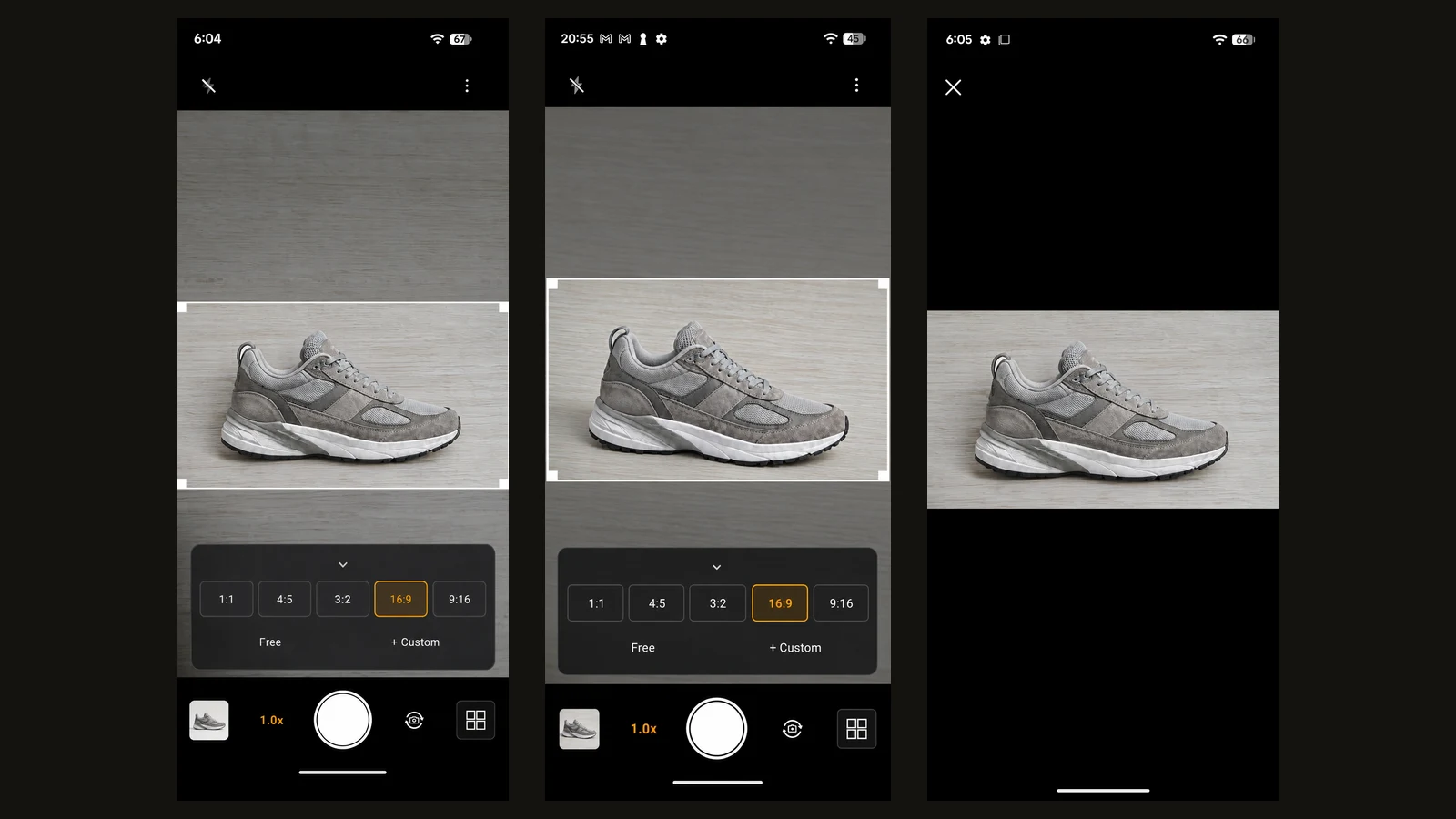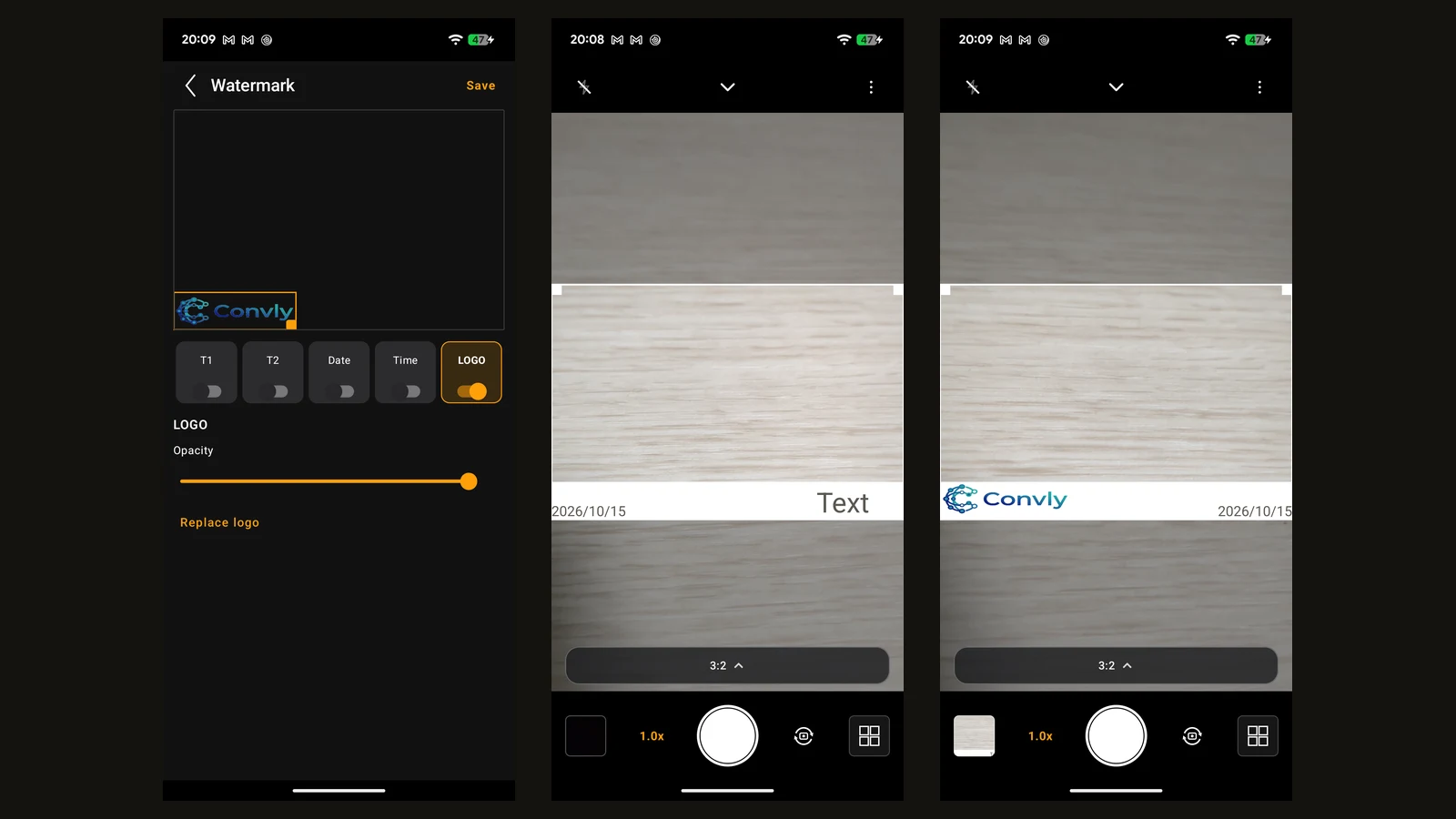
A screenshot is the fastest way to ask an AI. Most of the time you can send one without covering anything. And that is exactly why the check for something caught at the edge gets skipped. Keep it just as easy; only the awareness needs to stay on.
Most of the time, sending it as it is, is fine. What causes trouble is when something sits at the edge of the screen.
A screenshot saves the explaining
When the place you want to ask about sits inside a screen, turning that place into words makes the explanation grow long. Which one it is, what to leave out — the sentence does not end.
A screenshot carries the answer with it. You hand over the screen you are looking at, so the question comes together faster. Attaching an image is a reasonable way to ask.
Still, easy to attach and easy to check are two different things. A captured image contains everything that was on the screen.
What leaks sits at the edges of the screen
You may only need one table or one chart, but saving the screen as an image brings the surroundings along.
Notifications, tab titles, autocomplete suggestions, the window title, the URL in the address bar. To someone who uses the screen every day, they are too obvious to notice.
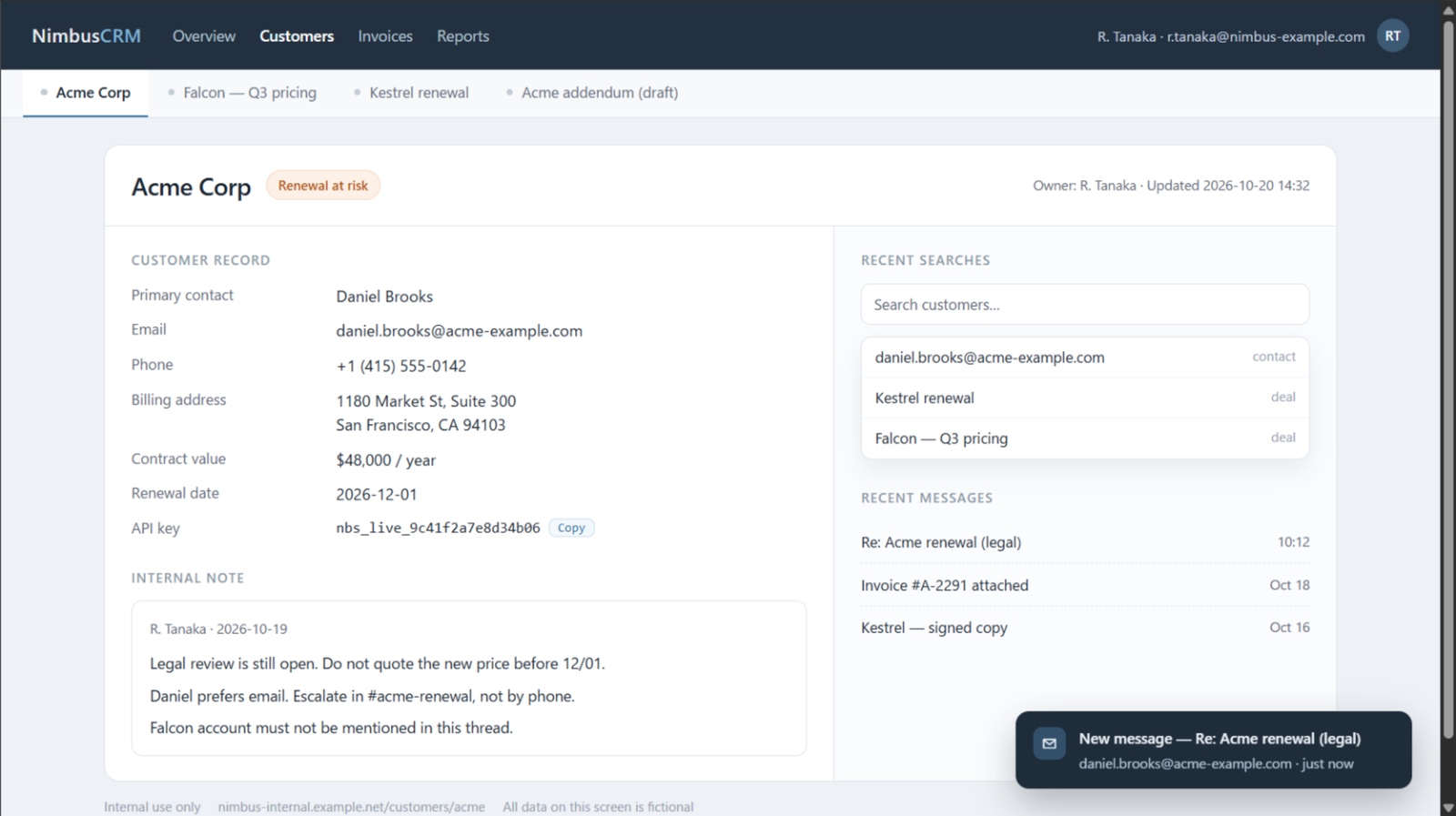
The image above is a whole customer management screen. A notification sits in the bottom right, search suggestions and history on the right, an internal URL along the bottom. The names, email addresses and URLs are invented for this article and do not exist.
None of that is needed to read the table in the middle. Only the unneeded parts stay at the edges.
What you hand over gets read in full
The AI reads the image as it is. You cannot choose which part of it gets read.
You can add "only look at this part". Whether the reader is a person or an AI, the instruction lands. But that only changes where it looks; the image keeps everything. A forward or a saved file keeps everything too, note and all.
The image and the conversation stay on the service's side. How they are kept and used is set by the provider's terms, and you cannot see it from here. Even if you delete the conversation later, there is no way to confirm what happened to it.
Whether something is hidden is decided by what a reader can read, not by what the sender intended. What can be read, gets read.
Black is what removes it
Cases that need covering are not common. But if you cannot cover them reliably, there is no getting the image back once it has been sent.
Here is the same area, enlarged, before and after covering.
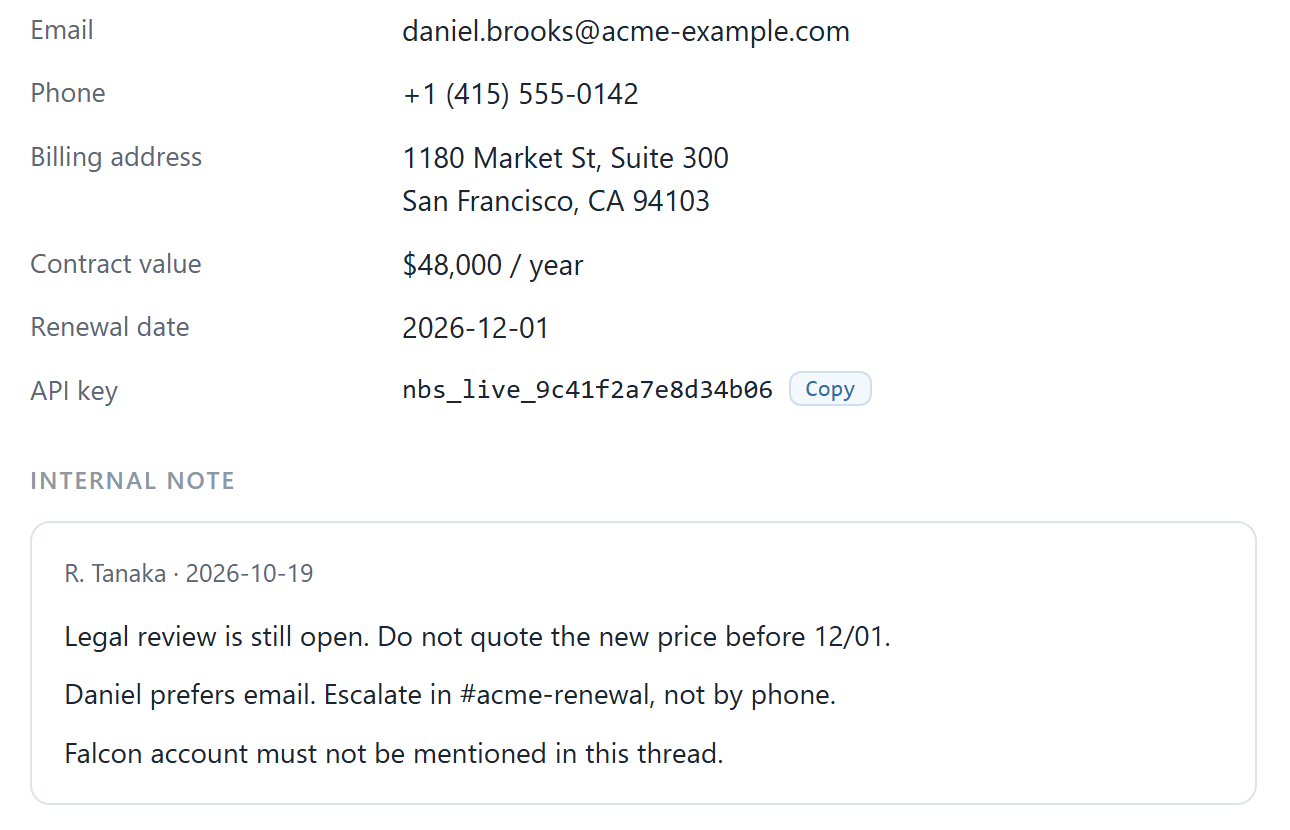
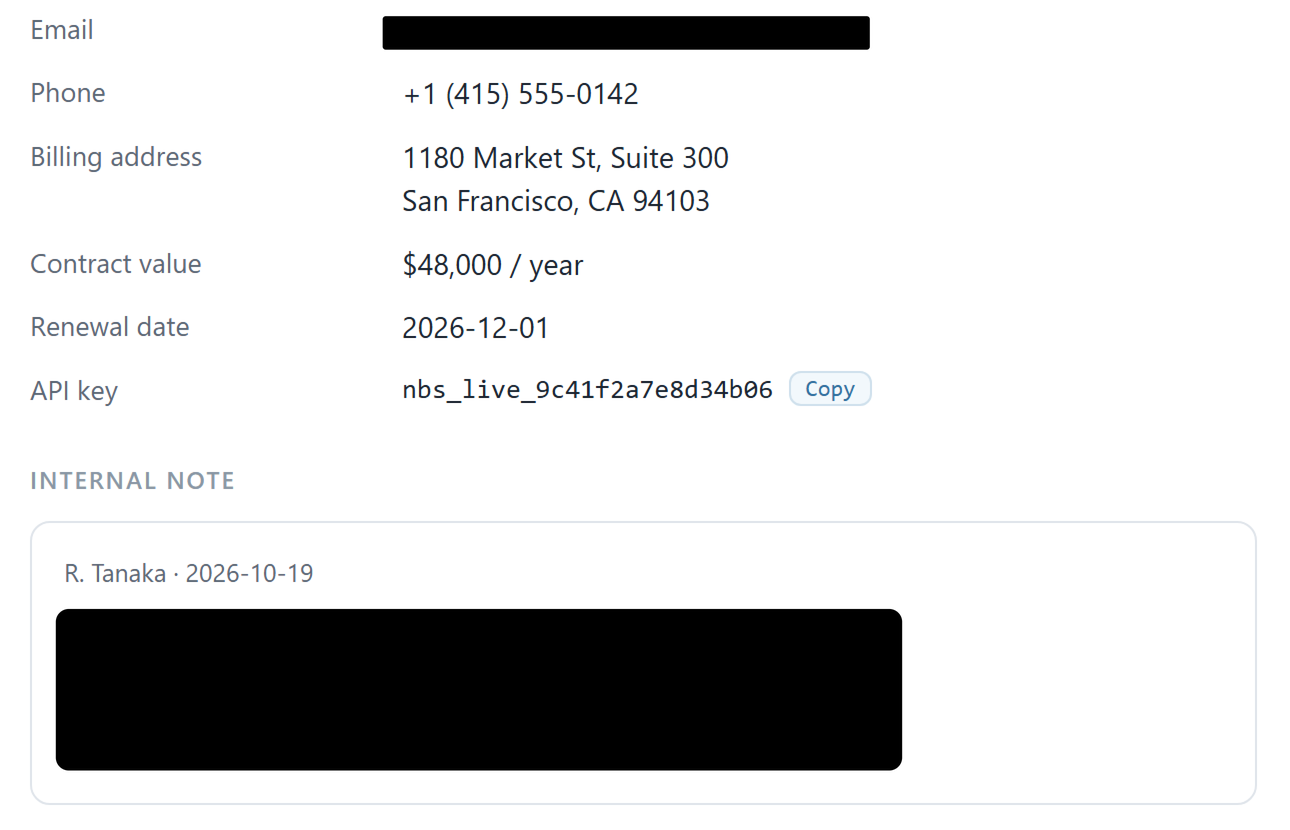
The first is the original. The second has the email value and the three lines of the internal note covered in black. The zoom and the position are the same, so only the changed place stands out.
Cover values, not rows. Leaving the label and covering only the value keeps the difference between hidden and visible. Covering a whole row erases what the row was.
Covering replaces the pixels in that area. The text underneath does not remain. Black, or a dark grey, does not blend into the rest of the screen, so it is clear at a glance that something was taken out.
Mosaic also works as a way to remove text. When I tried it, the characters disappeared completely. What stayed was a scatter of coloured specks, which looks less like something hidden and more like a broken image. If the look does not bother you, mosaic still does the job. The role does not change; the means does. What this article puts first is covering.
Look again at the covered image
Look at the covered image again. One thing was left behind.
Did you catch it? It is the API key row. Noticing that is the check itself.
Rows where the value is the key go, whoever the reader is. Passwords, API keys, tokens. That part does not change with the use.
After covering, read the remaining rows from the top. Cover once and the line next door stays behind.
If you spotted it just now, that eye is the thing that helps.
Deciding before the shot leaves less to cover
Covering is added after the capture. If you decide what you are handing over before you take the shot, you can choose not to capture it at all.
The order is:
- Do not capture: switch screens, or use another screen for the job
- Crop: narrow the window, trim the edge
- Cover: fill what is left with black
Each step down is less certain than the one above. If it was never captured, there is nothing to remove. Cropping only shrinks what stays inside the image. Covering is not the last resort; it is the finish that makes the rest certain.
Cover and send, without saving
Most of this work happens on an image that has already been saved somewhere. Saving it is the moment the unmasked version lands on disk. The masked version adds a second file.
Kiritasu does the capture, the covering and the handover in one window. The edited image does not have to be saved as a file; it goes straight into the chat by drag and drop.
Leaving the file out changes three things at once.
- The unmasked image never lands on disk
- There is no second image to hunt down and delete later
- Finished screenshots do not pile up on the desktop or in Downloads
Image processing stays on your machine. The app does not send the image anywhere; whether it leaves is decided by when you hand it to the chat yourself.
Not saving is a tidying matter, and a privacy one.
When it cannot be hidden at all
Sometimes the screen itself is the secret. A list of customers, a dashboard full of figures. Covering all of it leaves nothing worth sending.
Then split the request instead. Send the numbers as text. Cut out a single row. Ask the question in words, without showing the screen.
If you have no tool or permission to edit, ask before you capture. Changing the job so that nothing unshareable has to be shared is the cheapest fix.
The earlier article ( When words get clumsy, one arrow does the describing ) is about pointing at the place you want to share. This one is the other side: removing what you do not want to share, before it goes anywhere.