 Sokqa
Sokqa
We recommend Muse — it is free
One instruction sheet, read once.
Then you only name a topic.
Have your AI assistant read the Sokqa instruction sheet (the "core") once. From then on, every time you name a topic it returns a learning pack you can import into Sokqa as-is. No forms to fill in, no JSON knowledge needed.
Making a pack is something ChatGPT or Claude can do too.
But a course that shows up at the same time every day needs an agent that schedules itself. Meta's Muse is that kind of agent, and it is free to start.
Muse invite code
Enter the invite code below in [Settings] within 48 hours of joining Muse and you get 1 billion Muse tokens — it adds free usage, so it is worth entering.
4TZDWP Four steps to get started
- 1
Open your AI
Using Muse? Enter through muse.ai/join and add the invite code above. ChatGPT and Claude follow the same steps from your usual screen.
One limit, though: scheduled delivery — "send me today's pack at 7am every morning" — only runs on an agent that can wake itself up on a schedule. With a chat-style AI, you have to ask each time you open it.
Getting recurring delivery out of another AI agent means a paid plan. (Muse is free to start.) - 2
Paste the instruction sheet URL
Paste the URL below into the chat and say "please read this". That is the whole setup — you don't paste it every time.
https://convly.jp/sokqa/ai/core.md - 3
Name a topic
On your first time, the AI shows what it can make and some start buttons (see a sample / enter a topic / build from materials). You can also just type what you want to learn in detail in a message — for example, "deliver AI-related news every morning at 7".
- 4
Import it into Sokqa
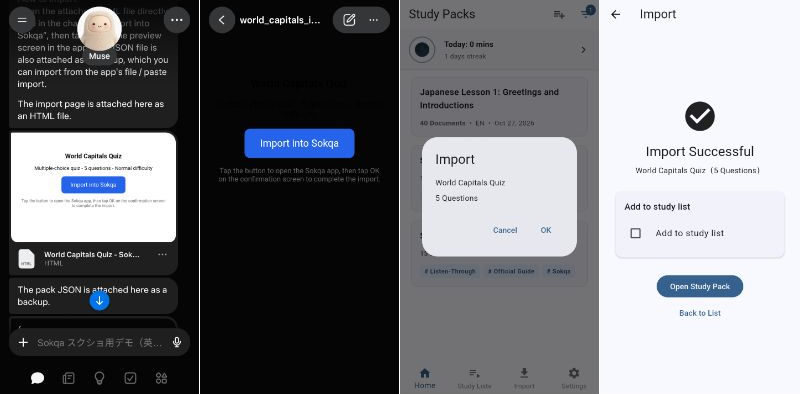
Tap the import button in what the AI gives you and the pack goes straight into Sokqa. A confirmation screen appears, and a few taps later the import is done.
An AI with no button, or one that fails to import, still works: copy the JSON into the app's "Import from Paste", or save the JSON as a file and load it with "Import from File". The steps are in Import the JSON you created.
Which languages work
- Japanese, English, or anything else you chat in. Once the AI has read the sheet, it defaults to the language you are already using — nothing to configure.
- The sheet itself is written in Japanese. That only affects the document, not your chat: the AI talks with you, and offers its choices, in your language.
- The language you chat in and the language of the pack are separate. You can chat in Spanish and get an English pack, or the other way round.
- Reading packs aloud uses your device's own voices, so how well a language is pronounced depends on which voices are installed on your phone or computer.
Note
- Your preferences (creation base) and your progress (history) stay on your AI's side. Nothing is stored on this site.
- Some AIs don't keep memory. In that case, keep the "creation base" and "history" texts the AI gives you, and paste them together with the instruction sheet next time.
- The parts an AI sends while splitting a long pack are unfinished, so they cannot be imported. Import only the final version it puts together at the end.
- Once you know what you want to learn, you can also ask for a course: "make a course for …". The AI asks a few questions and writes a plan that is yours alone.
- If a word is read aloud oddly, just tell the AI that word. It remembers it for your device and fixes it from the next pack on.